Documents & PDFs
Everything you send out — quotes, orders, invoices, credit notes, slips — is a PDF built from the record, in a design you choose. The order lines, quantities and prices always come from the order; everything around them is yours to shape.
Add your logo
- Open Settings → Documents & Templates.
- Under Logo, upload a PNG or JPG up to 1 MB. A wide image with a transparent background prints best.
- It appears on every PDF straight away. Use Replace logo or Remove to change it.
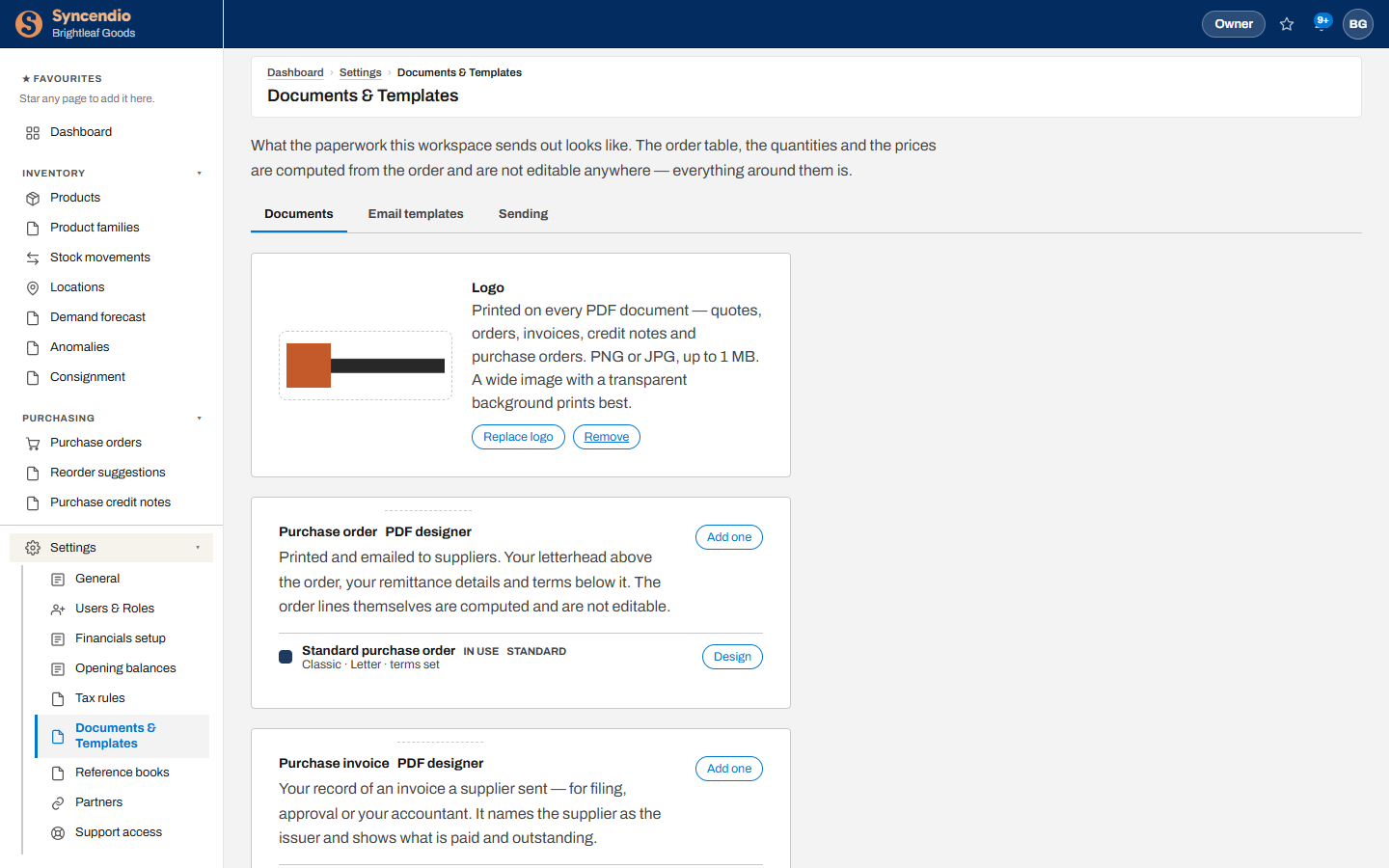
Design a document
- Find the document — for example Purchase order — and click Design on the template in use, or Add one to start another.
- Choose a layout style and page size, and pick your colours.
- Switch fields and columns on or off. Columns the document can’t do without stay on.
- Edit the text blocks — your remittance details, terms, a thank-you note.
- Watch the live preview as you go, then save. The template marked In use is the one every PDF of that kind uses.
Which documents
| Document | Where its PDF button is |
|---|---|
| Quote, sales order | Sales order → Order details |
| Picking, packing and shipping slips | Sales order → Pick / Pack / Ship, on each slip |
| Sales invoice | Sales order → Invoices |
| Credit note (sales and purchase) | Credit notes tab, or the credit note itself |
| Purchase order | Purchase order → Order details |
| Goods received note | Purchase order → Receiving, on each receipt |
| Purchase invoice | Purchase order → Invoices |
| Return authorisation | Sales → Returns |
Download and email PDFs
Tax is printed on quotes, orders, invoices and purchase orders: a Tax applied column naming the rule on each line (for example “HST — Ontario (13%)”), and a row under the lines for each tax with its amount. Invoices print the tax exactly as charged; quotes and orders show it as it will be charged. The column can be switched off in the designer; the tax rows always print.
Click PDF on any document to open it. When you email a customer or supplier from Syncendio — Email order, sending an invoice, sending a purchase order — that same PDF is attached, so what you see is exactly what they get.
Every email opens for review before it’s sent. The review screen shows who it’s from, the reply-to address, who it goes to, anyone copied, the subject, the message and the attached PDF. Change the recipient if you need to, then click Send email — nothing leaves until you do. If it can’t be sent yet (sending is paused, a purchase order is waiting for approval, a bill of lading was voided), the screen says why. This applies to quotes, orders, invoices, credit notes, return authorisations, receipts, purchase orders and bills of lading, in Syncendio and on the warehouse scanner.
Drafts are marked. A PDF of a document that’s still a draft carries a large DRAFT watermark, so it can’t be mistaken for the final version.
Email templates
The Email templates tab sets the subject and message sent with each kind of document, with placeholders such as the order number and customer name filled in for you. Sending sets the name and reply-to address your emails come from.
Attachments
Sales orders and purchase orders each have an Attachments tab for the files that belong with them — a customer’s PO, a supplier’s confirmation, signed delivery notes, emails. Drag files in or click Choose files; PDFs, images, Word, Excel, CSV, text and saved emails up to 10 MB each. Anyone who can see the order can open them.