Financials
Syncendio keeps double-entry books as you work. Receiving stock, shipping an order, raising an invoice — each posts its own journal entry, so the accounts always match what happened in the warehouse.
How postings work
You rarely write journal entries yourself. The documents that move stock or money post for you, and each entry stays with the document that caused it — open any order’s Financial tab to see exactly what it posted.
| When you… | Syncendio posts |
|---|---|
| Receive a purchase order | Stock in, at what you paid |
| Record a supplier invoice | What you owe the supplier |
| Ship a sales order | Stock out, and the cost of the sale |
| Invoice a customer | Revenue and what the customer owes |
| Adjust, write off or count stock | The difference, to your adjustments account |
Set up your accounts
- Review Financials → Chart of accounts. A standard set is created with every workspace; rename or add accounts to match how your accountant works.
- In Settings → Financials setup, choose which accounts sales, purchases, stock and tax post to.
- Coming from another system? Enter what you already hold and owe under Settings → Opening balances before you start trading.
Bring in past transactions
Moving from another system? Besides your opening balances, you can import past invoices, supplier bills and credit notes so customers, suppliers and products show their history from day one.
What past sales and purchases are for
Your opening balance tells Syncendio where the business stands on the day you switch. Past transactions tell it how you got there. They’re history to look up and report on, not new entries in your accounts.
| Import | Use it to |
|---|---|
| Past sales: customer invoices and credit notes | See what each customer has bought and how much they’ve spent; see how each product has sold; compare sales before and after the switch in Sales by Product and Sales by Customer; look up an old invoice when a customer asks about it |
| Past purchases: supplier bills and credit notes | See what you’ve bought from each supplier and what you paid per unit; check past prices before you order again; look up an old bill when a supplier queries it |
How it affects your opening balance
It doesn’t. Past transactions post no journal entries, move no stock, create no stock cost and record no payments. Your opening balance, as at the conversion date, is still the only thing that sets your accounts, stock and what customers and suppliers owe.
Your old system’s balances already include every one of those past invoices. If Syncendio posted them again, each sale and purchase before the switch would be counted twice: revenue, costs, tax and what’s owed would all be overstated.
| Opening balance | Past transactions | |
|---|---|---|
| What it is | Where the business stands on the conversion date | The invoices and bills that led there |
| Accounts and reports such as Profit & Loss and Balance Sheet | Yes: posted as one journal entry | No |
| Stock on hand and stock value | Yes | No |
| What customers and suppliers owe | Yes: each unpaid invoice or bill | No |
| Can take a payment | Yes, on unpaid items | No |
| Customer, supplier and product history, sales reports | — | Yes |
| Can be undone | Only by restating | Anytime, with Undo import |
Example. Your conversion date is 31 March. In February you invoiced Cedarpoint Retail $1,130 (INV-1042); they paid $500 and still owe $630.
- In Opening balances → Owed to you, enter INV-1042 at $630, the amount still owed. This is what goes into your accounts.
- In Past sales, import INV-1042 with its full lines, $1,000 + $130 tax. This is what Cedarpoint’s history and your sales reports show.
- Syncendio matches the two by customer and invoice number, and marks the history row In opening balance. When Cedarpoint pays the $630, record it against the opening item. Your accounts count the invoice once, at $630 still owed.
You can import past transactions before or after posting your opening balances, and undoing an import never changes a balance.
How to import
- In Settings → Opening balances, set your conversion date: the last day in your old system.
- Make sure every customer, supplier and product named in your files already exists in Syncendio. The import refuses unknown names rather than creating duplicates.
- Open the Past transactions tab and click Blank CSV under Past sales or Past purchases.
- Fill in one row per invoice line and repeat the document number, date and customer or supplier on each line. Set type to
credit_notefor credit notes; leave it blank for invoices. - Click Import CSV. If any row has a problem, nothing is saved and the message names the row to fix.
| Rule | Why |
|---|---|
| Dated on or before the conversion date | Anything later belongs in Syncendio itself |
| Dates as YYYY-MM-DD | 03/04/2026 means different days in different countries |
| A sku or a description on every line | A line with no sku, such as freight or a discontinued item, is kept as written |
| The same document can’t be imported twice | Undo the earlier import first to replace it |
Where it shows: a customer’s Invoices tab and a supplier’s Purchase orders tab, under Before Syncendio; a product’s Before Syncendio tab; and the Sales by Product and Sales by Customer reports.
Unpaid invoices: an invoice still unpaid on the conversion date belongs in your opening balance too, under Owed to you or Owed by you. In the history it’s marked In opening balance, and you record the payment against the opening item.
Imported the wrong file? Click Undo import next to it. Because nothing was posted, removing it changes no balance.
The journal
Financials → Journal lists entries written by hand — accruals, depreciation, opening balances and corrections. For every posting in one list, including the ones documents make, open the Journal Entry Register linked at the top.
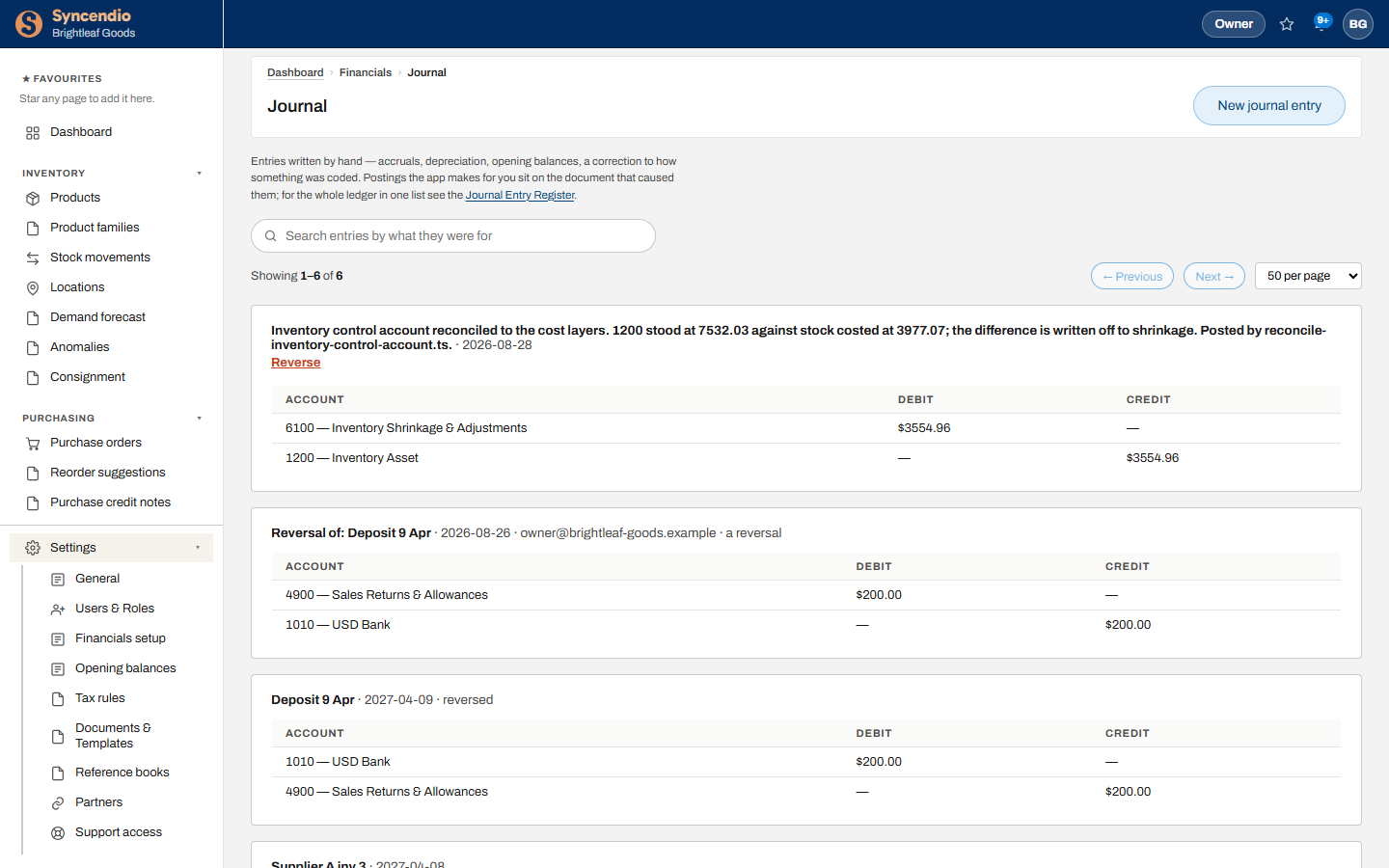
Make a manual entry
- In Financials → Journal, click New journal entry.
- Give it a date and a description that says what it’s for — that’s what the search finds later.
- Add lines: an account and a debit or credit on each. Debits and credits must balance.
- Save. To undo it later, use Reverse rather than editing.
Bank reconciliation
Financials → Bank reconciliation is where you check your bank statement against what Syncendio has recorded. Match each statement line to the payment or deposit it belongs to; anything left unmatched is what needs looking into.