Help centre › Point of Sale
Point of Sale
The shop floor: what the till offers, which drawers exist, and where the money went. Sales at the counter take stock from the same inventory as every other order.
Set up the till
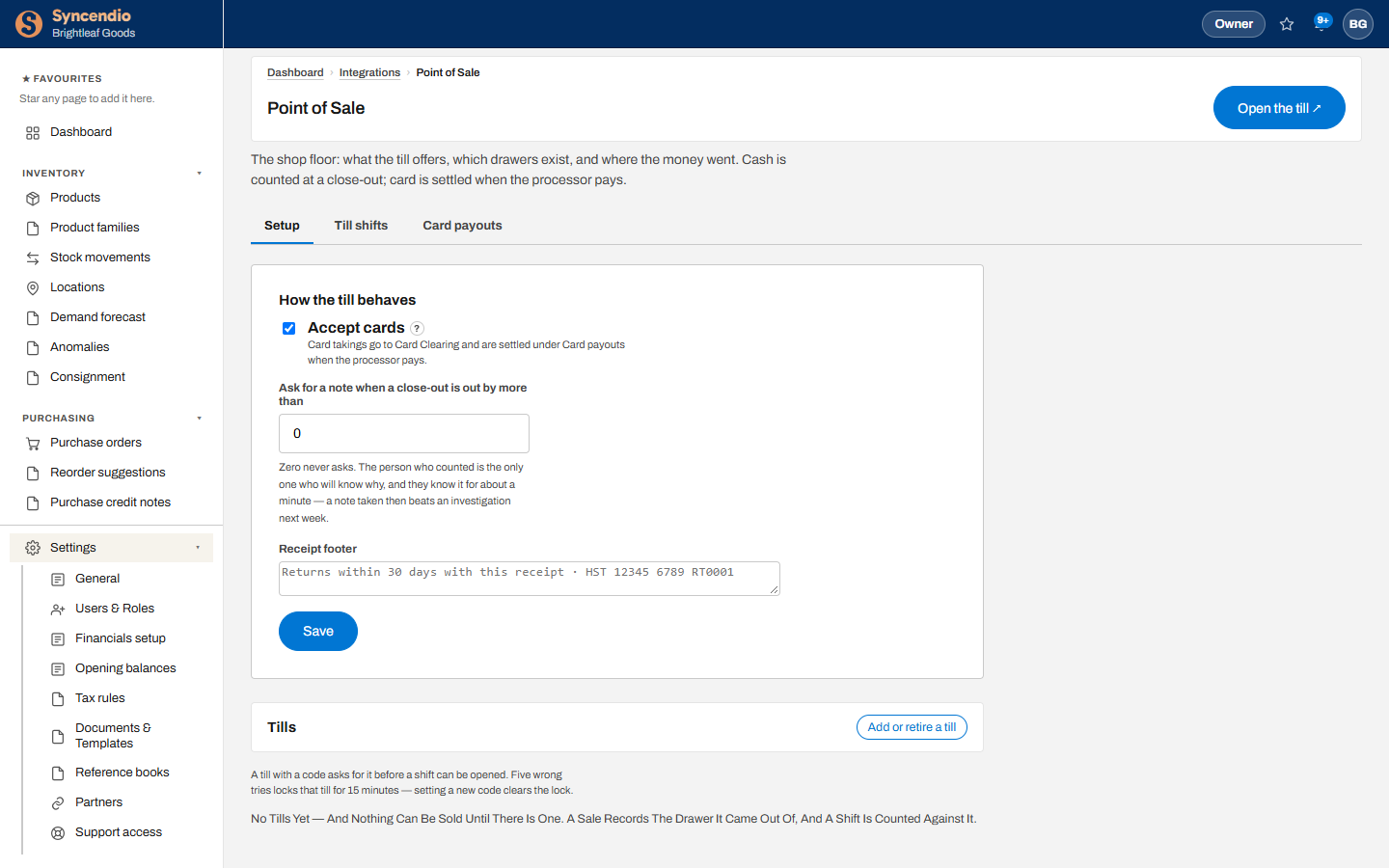
Open Integrations → Point of Sale. On the Setup tab:
- Accept cards — card takings go to card clearing and are settled under Card payouts when the processor pays you.
- Ask for a note when a close-out is out by more than — the cash difference that makes the cashier explain. Zero never asks.
- Receipt footer — your returns policy, tax number or a thank-you, printed on every receipt.
Click Save.
Add a till
- Under Tills, click Add or retire a till.
- Name the till and, if you want, give it a code staff must enter to open a shift.
- Save. Nothing can be sold until at least one till exists.
Wrong code five times locks that till for 15 minutes. Setting a new code clears the lock.
Sell at the counter
- Click Open the till ↗. The till opens in its own tab — bookmark it on the counter device.
- Choose the till and open a shift, counting the float into the drawer.
- Scan or search products, take payment by cash or card, and print or email the receipt.
Shifts and close-outs
At the end of a shift, count the drawer and close out. Syncendio compares the count with what the shift should hold; if the difference is over your threshold, the cashier adds a note while they still remember why. Every close-out is listed on the Till shifts tab.
Card payouts
When your card processor deposits the money, record it on Card payouts and match it to the card takings it covers. Any processor fees are the difference.