Consignment stock
Stock that’s somewhere it doesn’t belong: a supplier’s goods sitting on your shelf until you sell them, or your goods sitting in a customer’s shop until they sell them. Consignment keeps your stock valuation honest about both.
Turn it on
Consignment is an add-on: $39 a month, included in Pro. An owner switches it on under Settings → Add-ons, and Inventory → Consignment appears in the menu.
The two arrangements
Consignment works per location. Give the consignment stock its own location first — for example “Supplier A consignment” or “Corner Store (ours)”.
| Arrangement | Example | Effect |
|---|---|---|
| Their stock, on my shelf | A supplier leaves goods with you and is paid when you sell them | You can sell it, but it’s kept out of your stock value — you don’t own it yet. It can only be added with a stock adjustment, and that adds the quantity with no cost on your books |
| My stock, on their shelf | You place goods in a customer’s shop on sale-or-return | Still in your stock valuation, but nothing can be sold or shipped from it — the stock is with them |
Mark a location
- Open Inventory → Consignment.
- Choose the Location and the Arrangement.
- Enter Whose stock it is (or Who is holding it), and a note if it helps.
- Click Mark location.
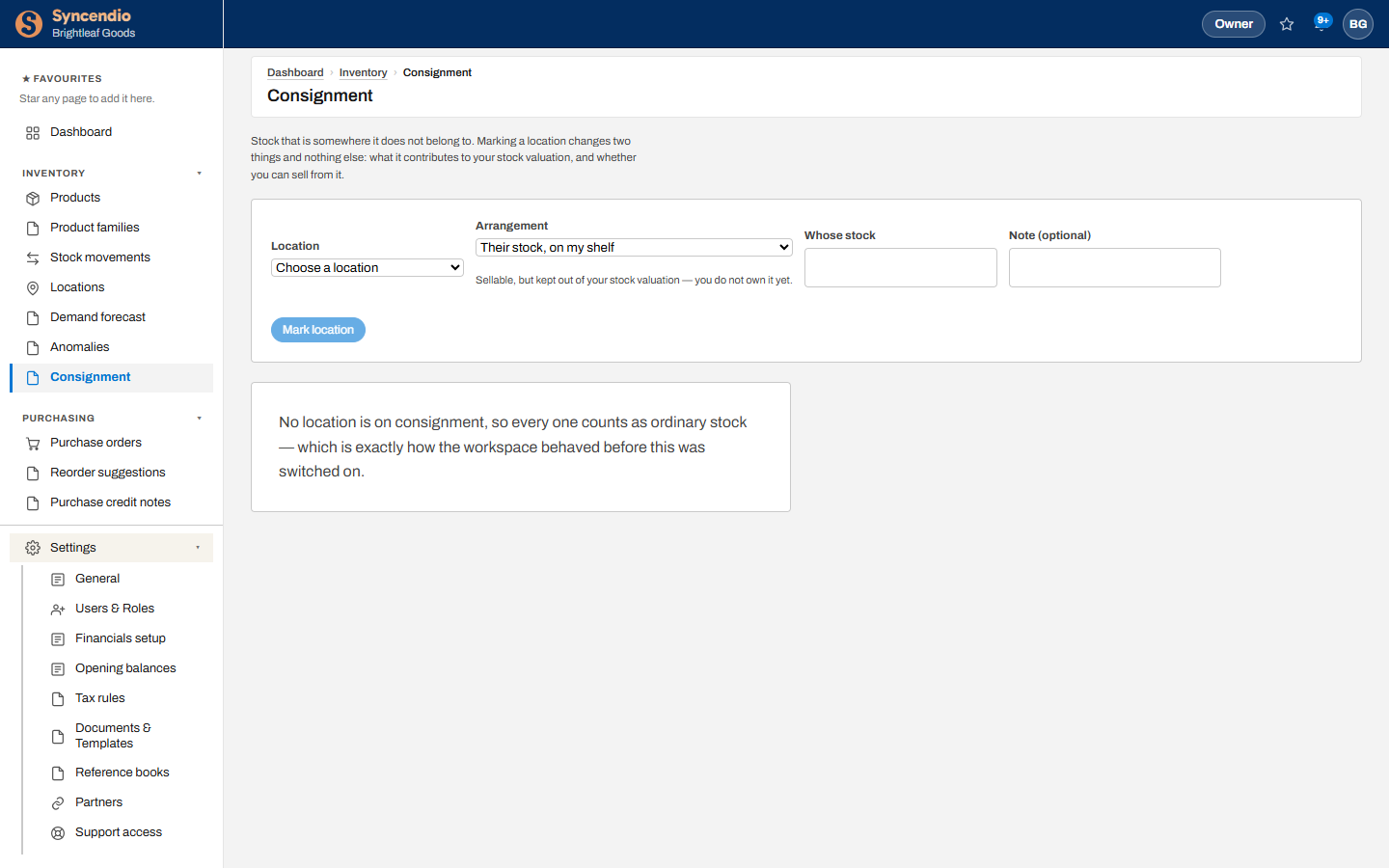
Marking a location doesn’t move any stock. It only changes whether that stock counts in your valuation and whether you can sell from it. Move goods in and out with transfers as usual.
A supplier’s stock on your shelf only comes in by adjustment. A purchase order, a transfer of your own stock, a restocked return or a build can’t put anything there — you didn’t buy it and it isn’t yours. Count it in with Stock movements → + Adjustment, or choose that location when you add the product. You can’t mark a location this way while it still holds your own stock; move that out first.
Your stock, on their shelf, can’t be sold from here. Sales orders, shipments, the till, routing rules and the B2B storefront all refuse that location. To sell the goods yourself, transfer them back to one of your own locations first. You can’t mark a location this way while open sales orders still ship from it — ship those or move them first.
Make a location ordinary again
When the arrangement ends, click Make ordinary on the location. Its stock counts as your own, normal stock from then on.
Viewing needs access to Inventory; marking and clearing locations need full access to Inventory.