Inventory
Your products, how much of each you hold and where, and every change to that stock — each with its own record and its own journal entry.
The product list
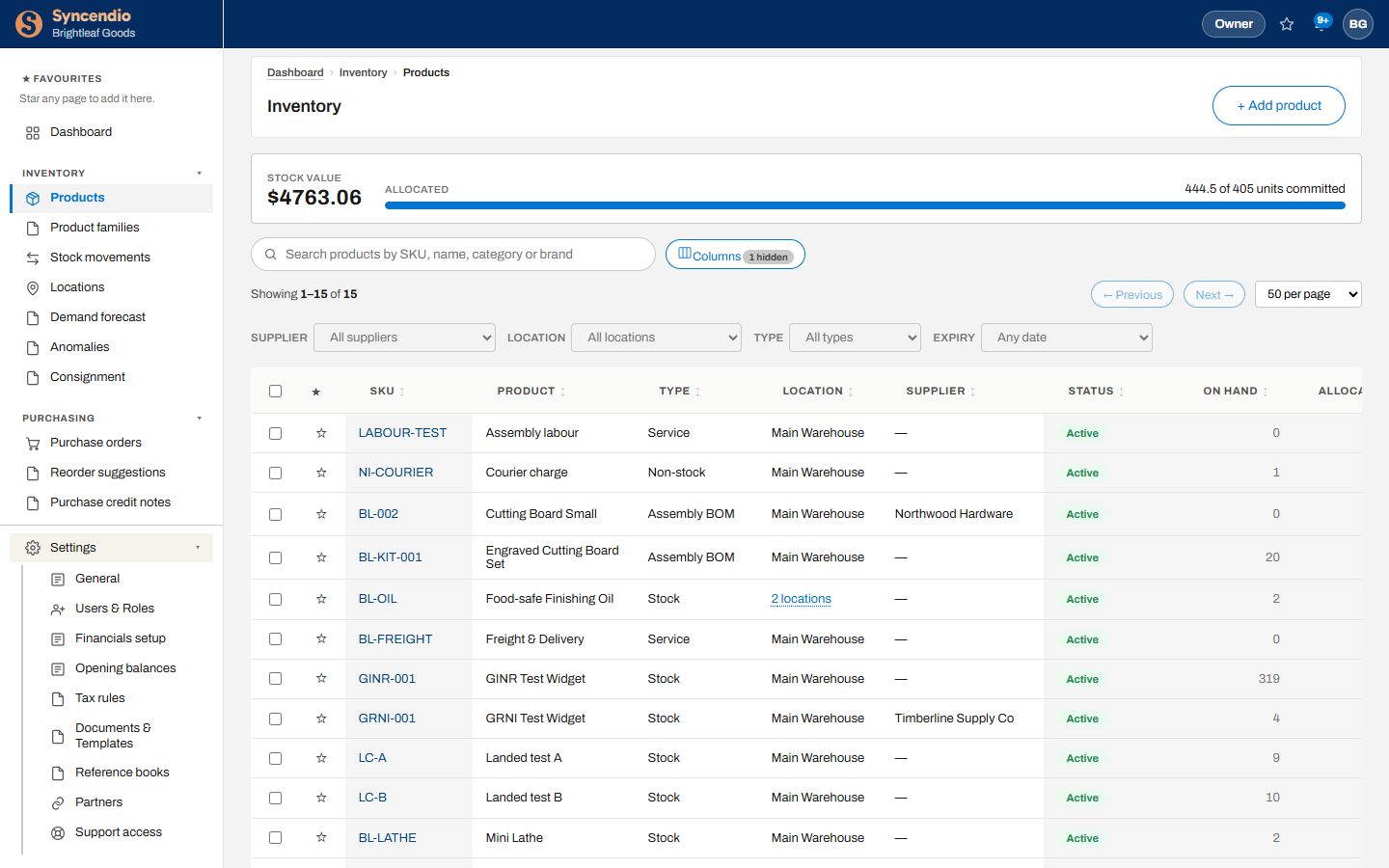
Open Inventory → Products. The bar at the top shows what your stock is worth and how much of it is already committed to orders.
- Search by SKU, name, category or brand.
- Filter by Supplier, Location, Type or Expiry.
- Use Columns to show or hide fields, and the star to add a product to your favourites.
Add a product
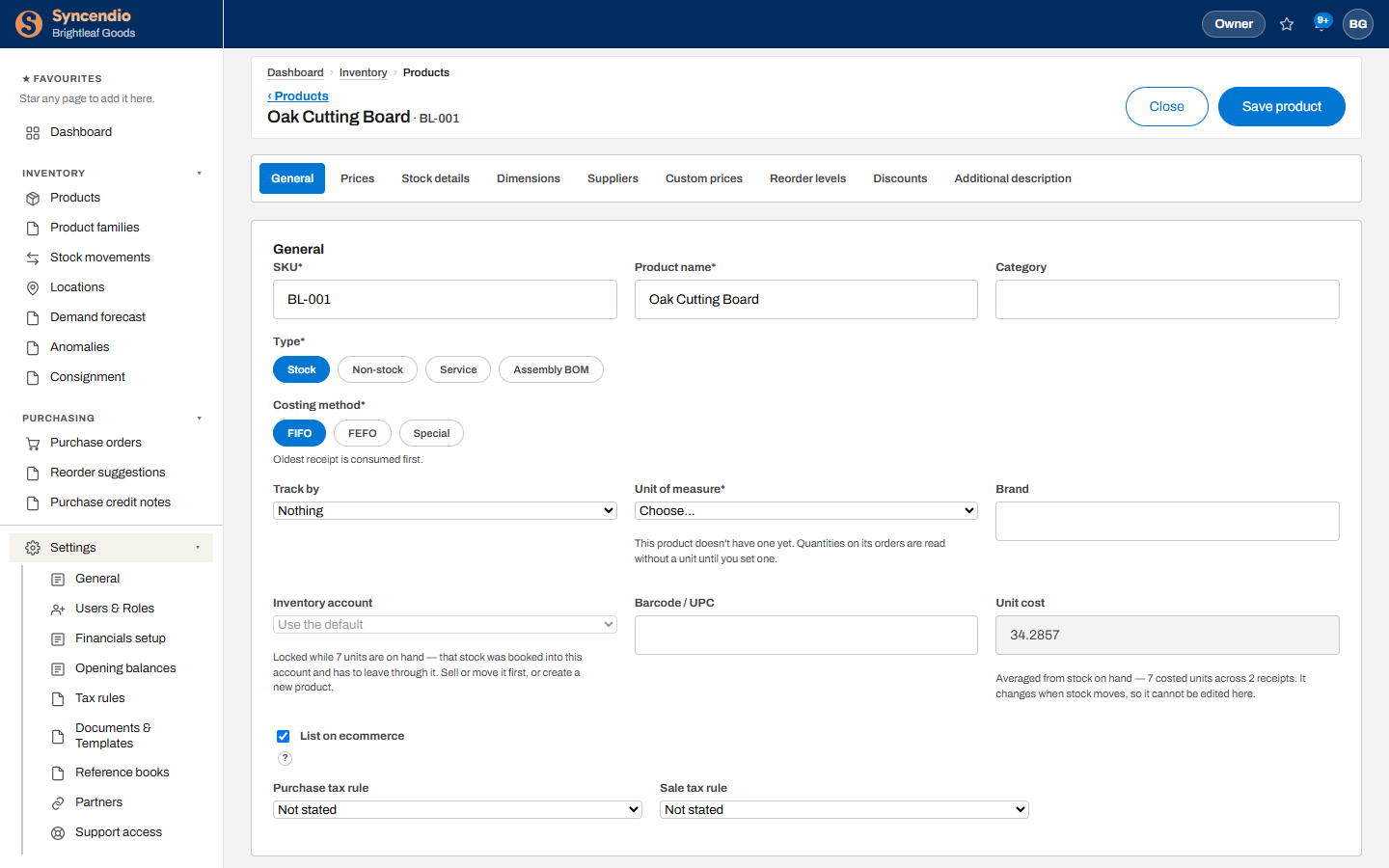
- In Inventory → Products, click + Add product.
- Enter the SKU and Product name, and choose the Location it’s kept at — all required. A location holding a supplier’s consignment stock is labelled as such; stock counted in there is theirs, not yours.
- Choose the Type and Costing method carefully: both lock once the product is used (see below).
- Pick a Unit of measure, then fill in prices, suppliers and reorder levels on the other tabs.
- Click Save product.
| Type | Use it for |
|---|---|
| Stock | Goods you hold and count |
| Non-stock | Goods you buy or sell without tracking quantities |
| Service | Labour, freight, fees — nothing physical |
| Assembly BOM | A kit built from other products (see Work orders) |
| Costing method | Which stock is used first |
|---|---|
| FIFO | The oldest receipt |
| FEFO | The batch that expires soonest — for food and pharma |
| Special | The batch you choose by hand when you pick |
Unit cost is calculated for you. For stock you hold, it’s the average of what you actually paid on each receipt, so it can’t be typed over.
Product families and variants
A product family is one thing you sell in several versions, such as a cheesecake in two sizes and three flavours. The family holds up to three options (Size, Flavour…) and their values. Each combination is a variant, and every variant is an ordinary product with its own SKU, stock, cost, price and recipe.
- Go to Inventory → Product families and click + New family.
- Enter the family SKU (for example CHZ) and name, then each option with its values separated by commas.
- Check the count shown, then click Create and generate. Variant SKUs are built from the family SKU and the values, for example CHZ-9-STRAWBERRY.
To add a value later, open the family, type the new values under Add … values and click Add variants. Only the combinations that don’t exist yet are created; nothing already made is changed.
Selling on Shopify? Import your Shopify products and each product with options becomes a family, or publish a family made here to Shopify. See Shopify.
Fields that lock
Some fields can’t change once a product has history, because changing them would rewrite what past documents mean. The screen greys them out and says why.
| Field | Locks when |
|---|---|
| Type | The product is on any order, invoice, credit note, return or stock movement |
| Costing method and Track by | The same — as soon as it is used on any transaction |
| Inventory account | While the product has stock on hand (unlocks when it’s gone) |
| Unit cost | While there is costed stock to average |
If a product needs to work differently, create a new product and stop using the old one.
Stock movements
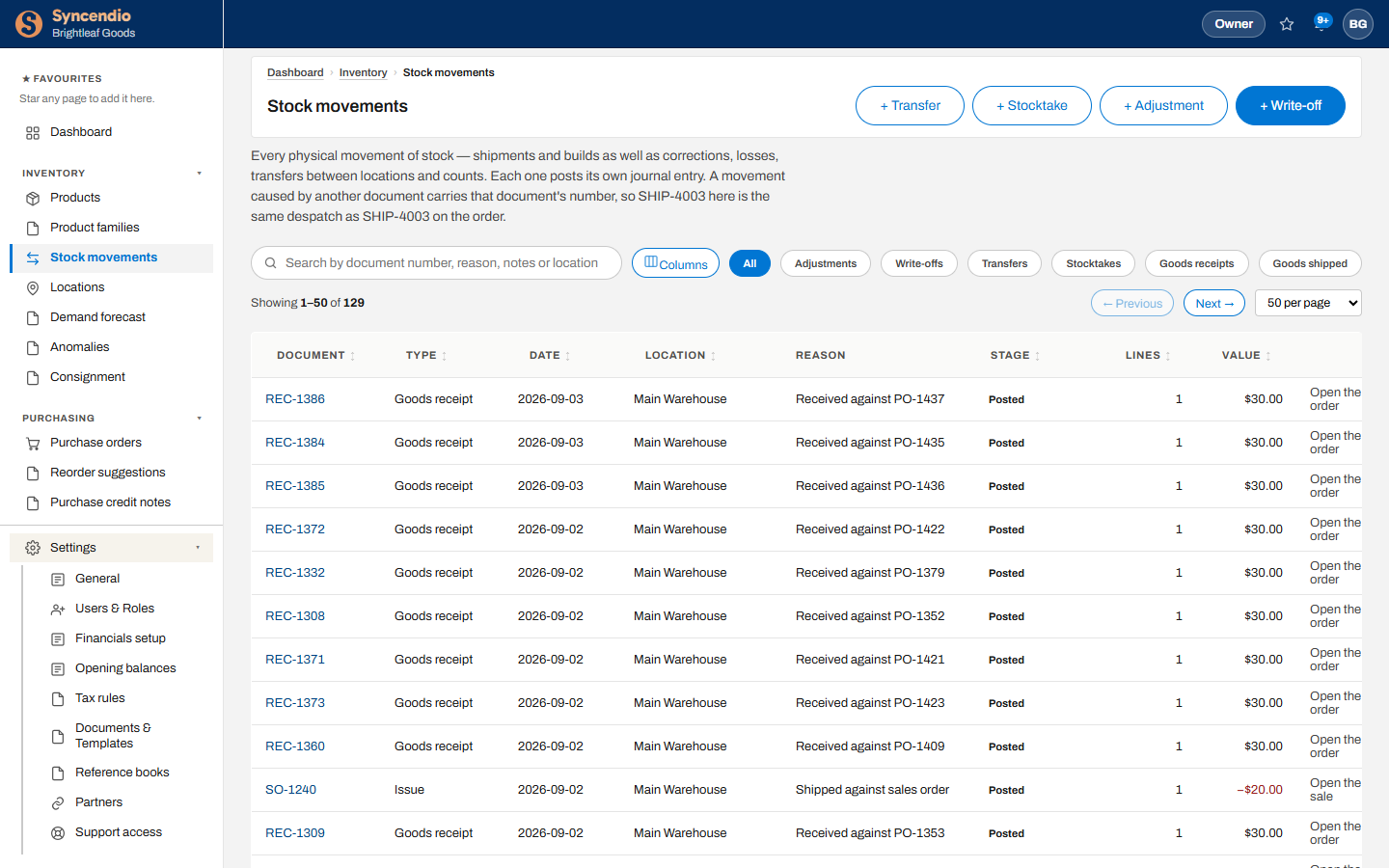
Inventory → Stock movements lists every change to stock: goods received, goods shipped, transfers, adjustments, write-offs and stocktakes. Filter by type with the buttons above the list, and click a document number to open it.
| Button | When to use it |
|---|---|
| + Transfer | Move stock from one location to another. Its cost moves with it, so stock sold at the new location is costed correctly. For a batch-tracked product the lots move too, keeping their batch number, expiry and cost, earliest expiry first unless you choose the lot. A transfer is refused if the lots at the source don’t cover the quantity. |
| + Stocktake | Count what is on the shelf and correct the system |
| + Adjustment | Fix a quantity for a known reason |
| + Write-off | Remove damaged, lost or expired stock |
You don’t record receipts or shipments here — they’re created for you when you receive a purchase order or ship a sales order.
Count your stock
- In Stock movements, click + Stocktake.
- Choose the location you are counting.
- Enter the quantity you counted for each product.
- Review the differences, then post. Syncendio corrects the stock and books the difference to your accounts.
With the warehouse scanner you can count with a handheld instead.
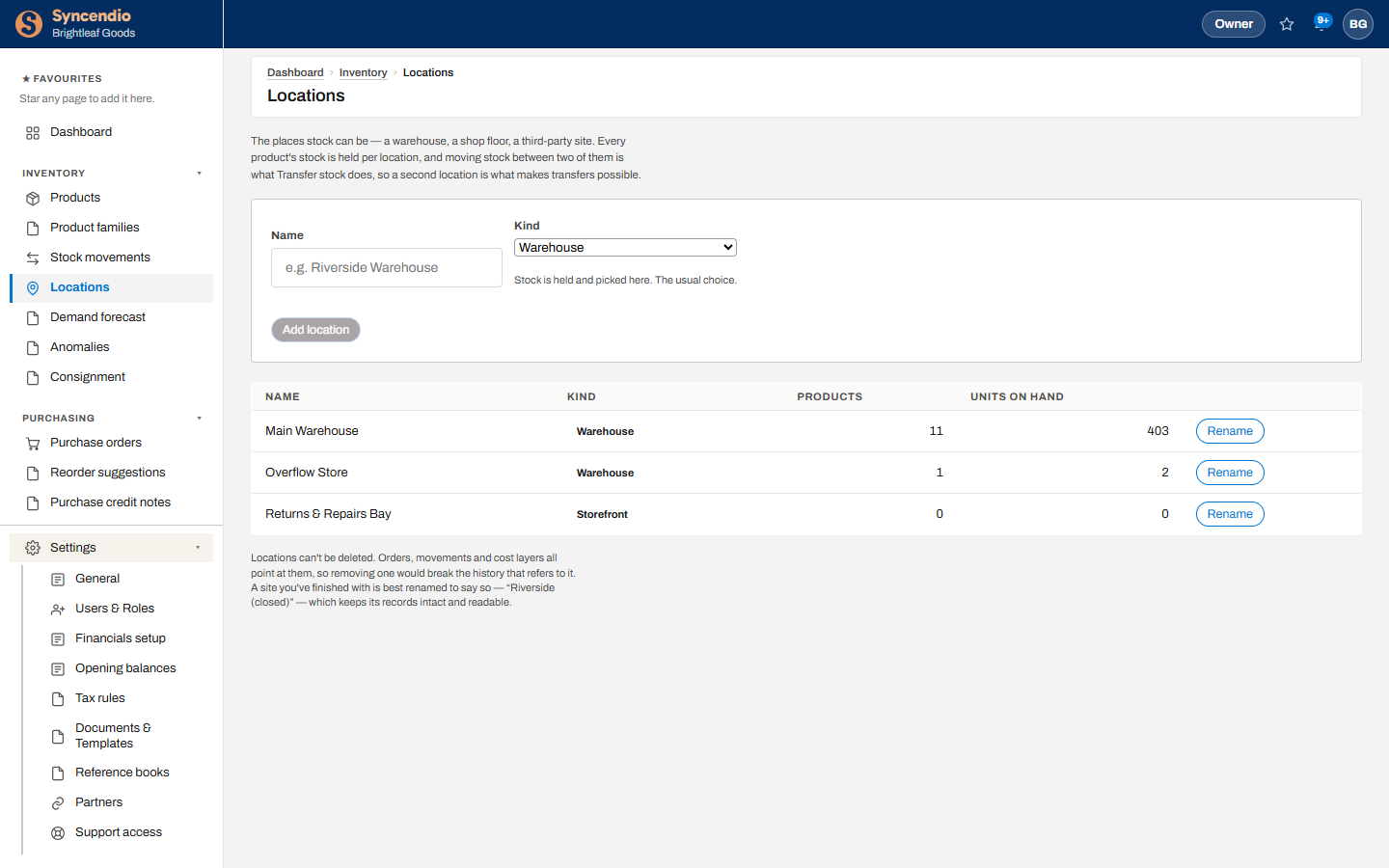
Locations
A location is anywhere you hold stock — a warehouse, a shop, a van. Add them under Inventory → Locations. Every order says which location it ships from or receives into, and stock is counted per location.