Work orders
Turn components into finished products — a gift set from its parts, a kit from its pieces — and carry the cost of what was used into what was made.
On every plan. Assembly & BOM is included in Starter, Standard, Growth and Pro — there is nothing to switch on.
Set up a bill of materials
- Create the finished product with the type Assembly BOM (see Add a product).
- On its Bill of materials tab, add each component and how many of it one build uses.
- Set the yield — how many finished units one build makes.
- Save the product. A product can have more than one recipe.
Build with a work order
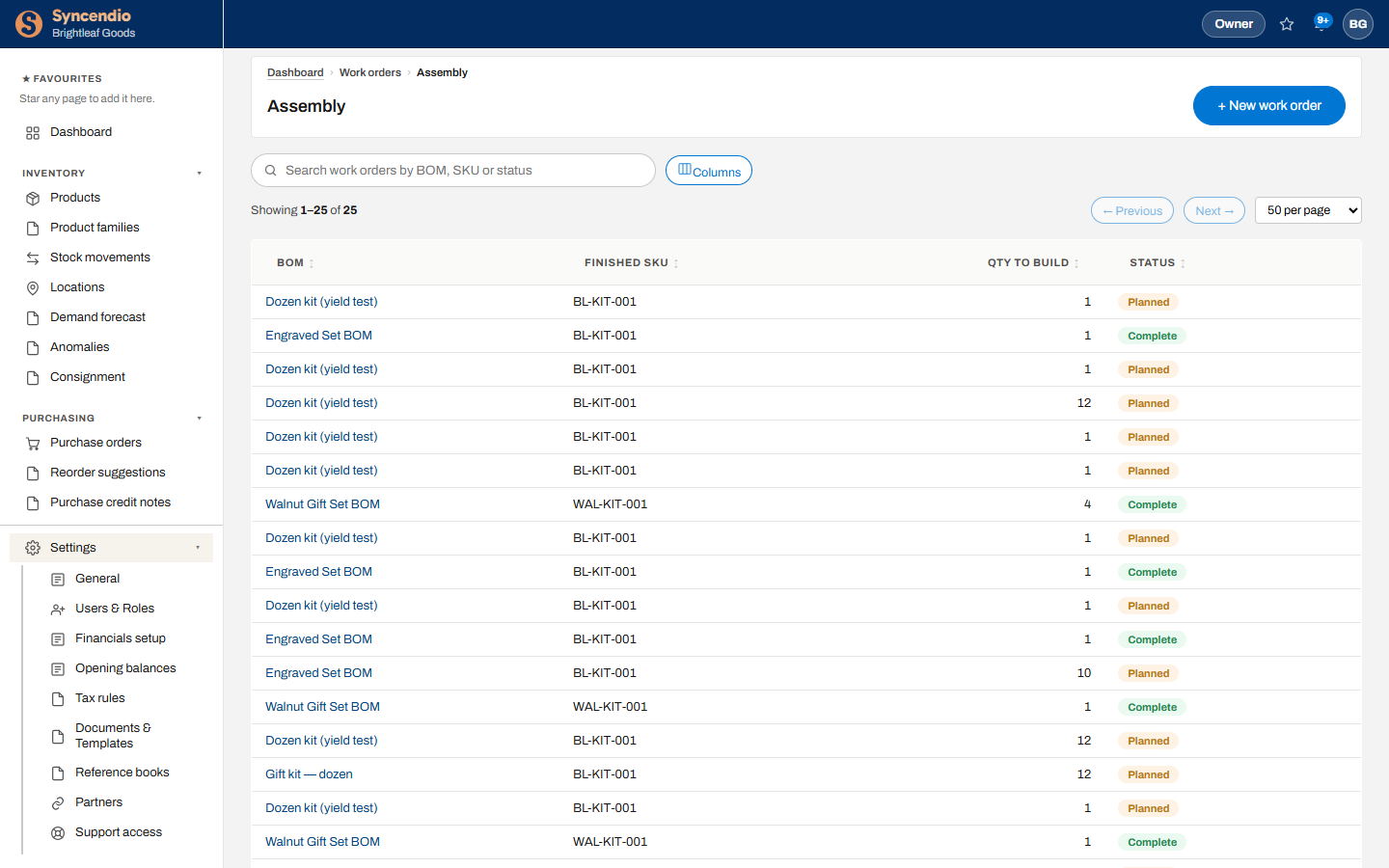
- Open Work orders → Assembly and click + New work order.
- Choose the bill of materials and the quantity to build. The order starts as Planned.
- When the components are ready, build it. Components come out of stock, the finished units go in, and the work order becomes Complete.
The finished product is costed at what its components actually cost — including any labour or overhead lines on the recipe — divided by the yield.
Built before a component had a cost? The build still goes through — stock is stock, whether or not you know what it cost yet. The finished units are left uncosted, and as soon as the missing cost arrives (usually with the supplier's invoice) Syncendio values that build and puts it through the books for you. You don't need to rebuild or re-enter anything.
Not enough components? The build is refused and tells you which component is short, so nothing is half-built.
Disassembly
To take finished units apart again — to sell the parts separately or recover them from a return — use Work orders → Disassembly. The finished units come out of stock and the components go back in.