Sales
From the first quote to the final invoice: one sales order carries the picking, packing, shipping, invoices and credit notes that belong to it.
Customers
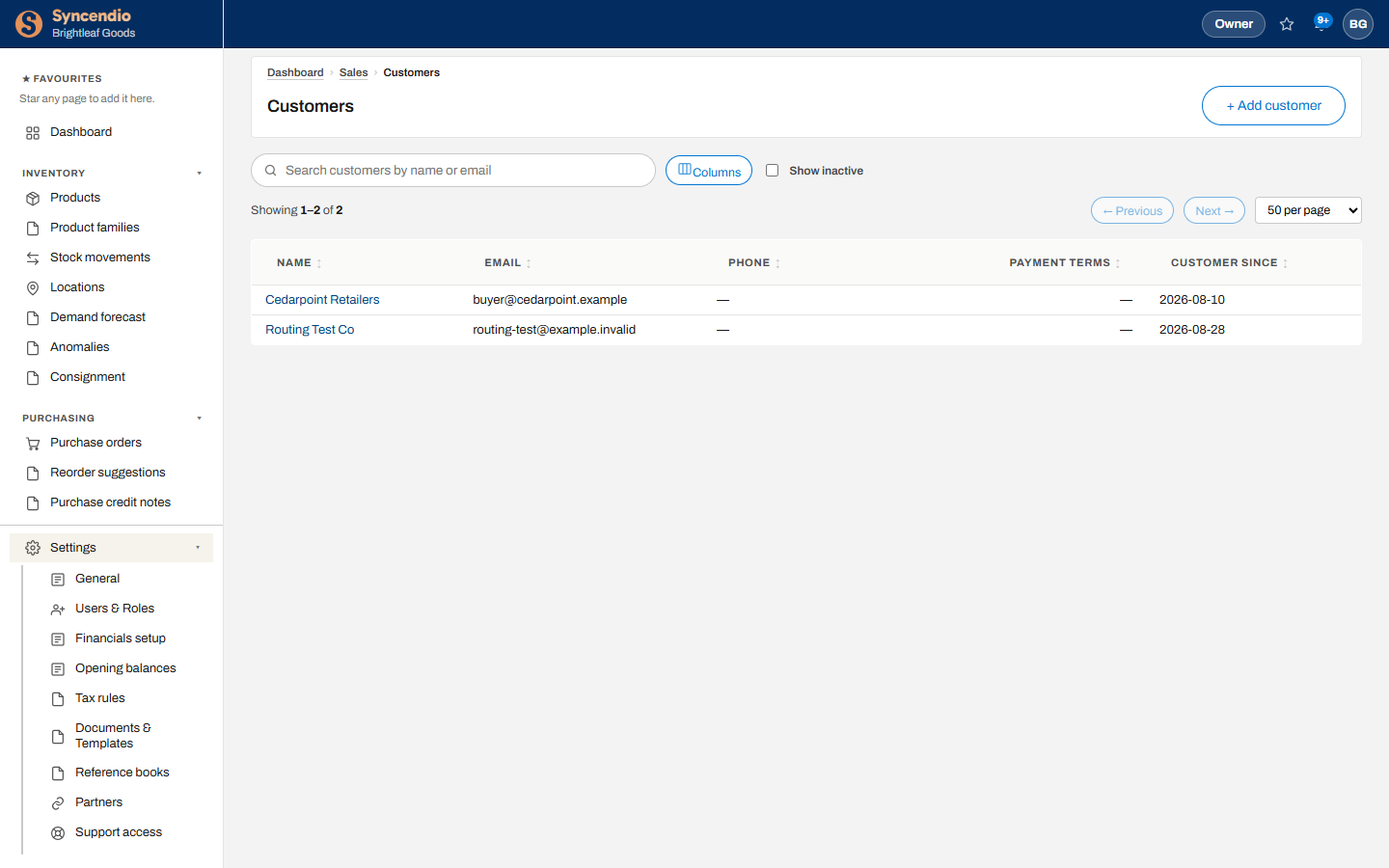
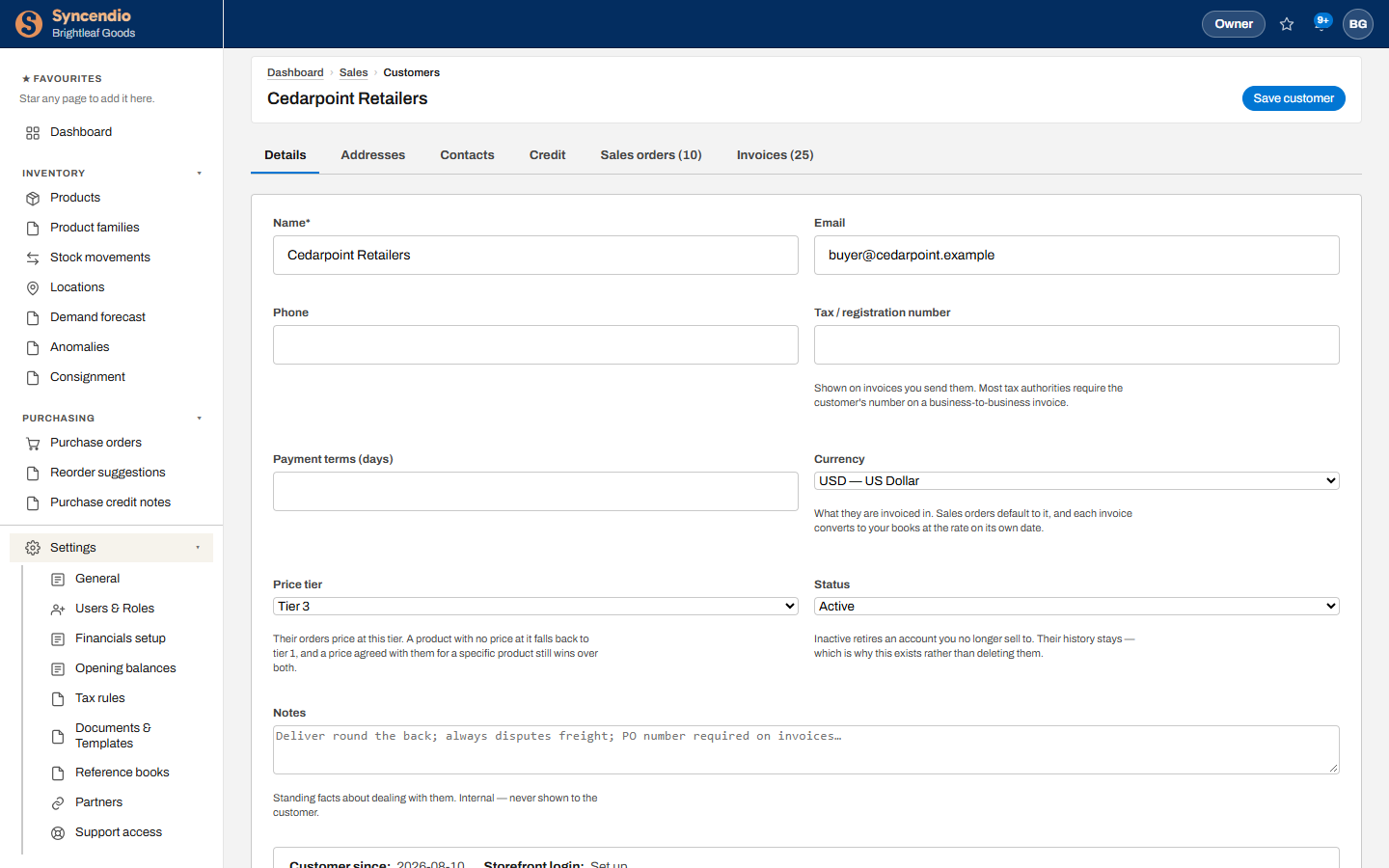
Open Sales → Customers and click + Add customer. Open a customer to set their payment terms, addresses, price tier and credit limit, and to see their orders and balance.
Create a quote or order
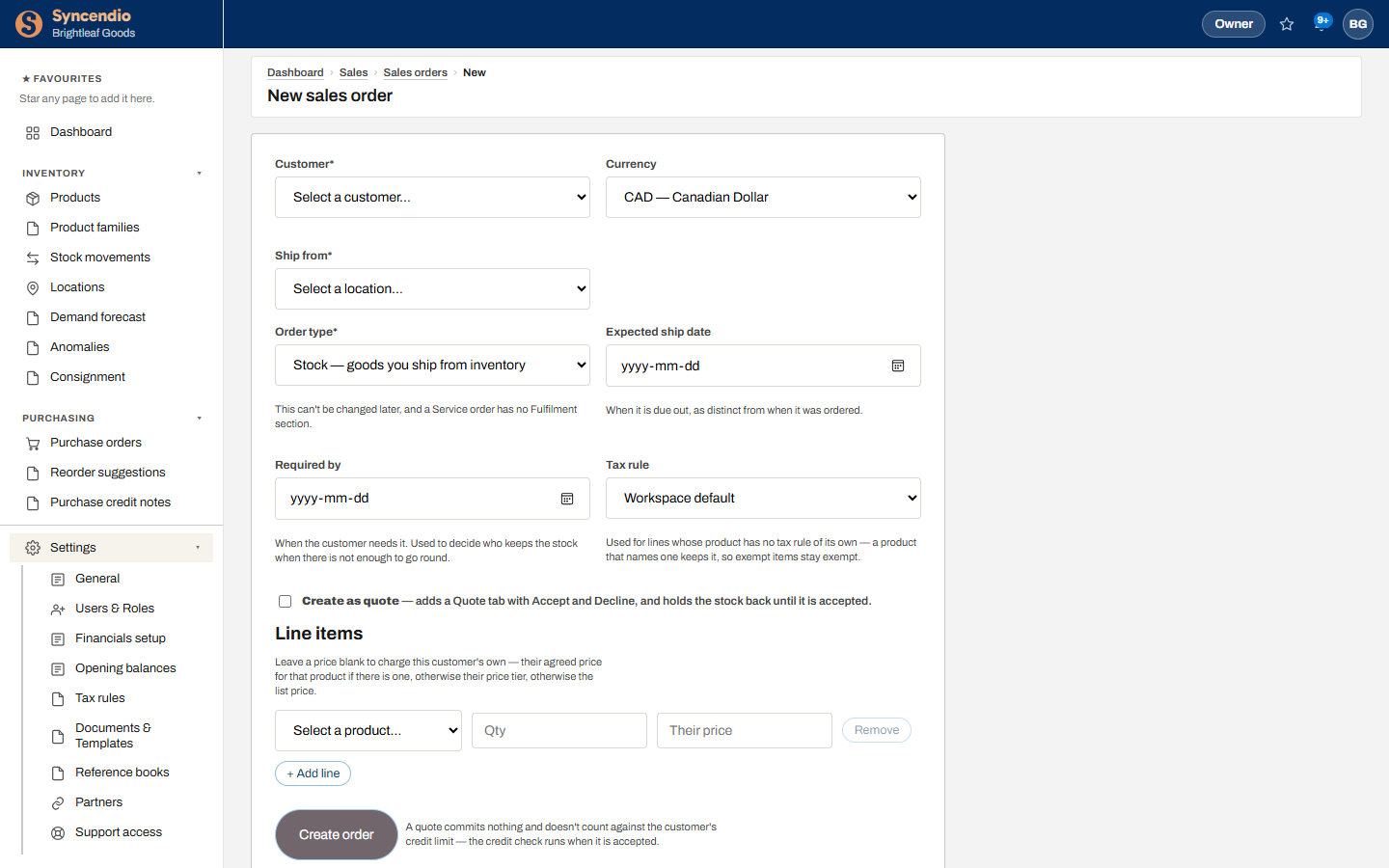
- Open Sales → Sales orders and click + New sales order.
- Choose the Customer, Currency and the location to Ship from.
- Pick the Order type: Stock for goods you ship, or Service for work with nothing to ship. This can’t be changed later.
- Optionally set Expected ship date, Required by and Tax rule.
- To send a quote first, tick Create as quote. A quote holds no stock and doesn’t count against the customer’s credit limit until it’s accepted.
- Add lines. Leave the price blank to use this customer’s own price for the product, then their price tier, then the list price.
- Click Create order.
Working an order
An open order shows its value, how much has shipped, and a tab for every stage.
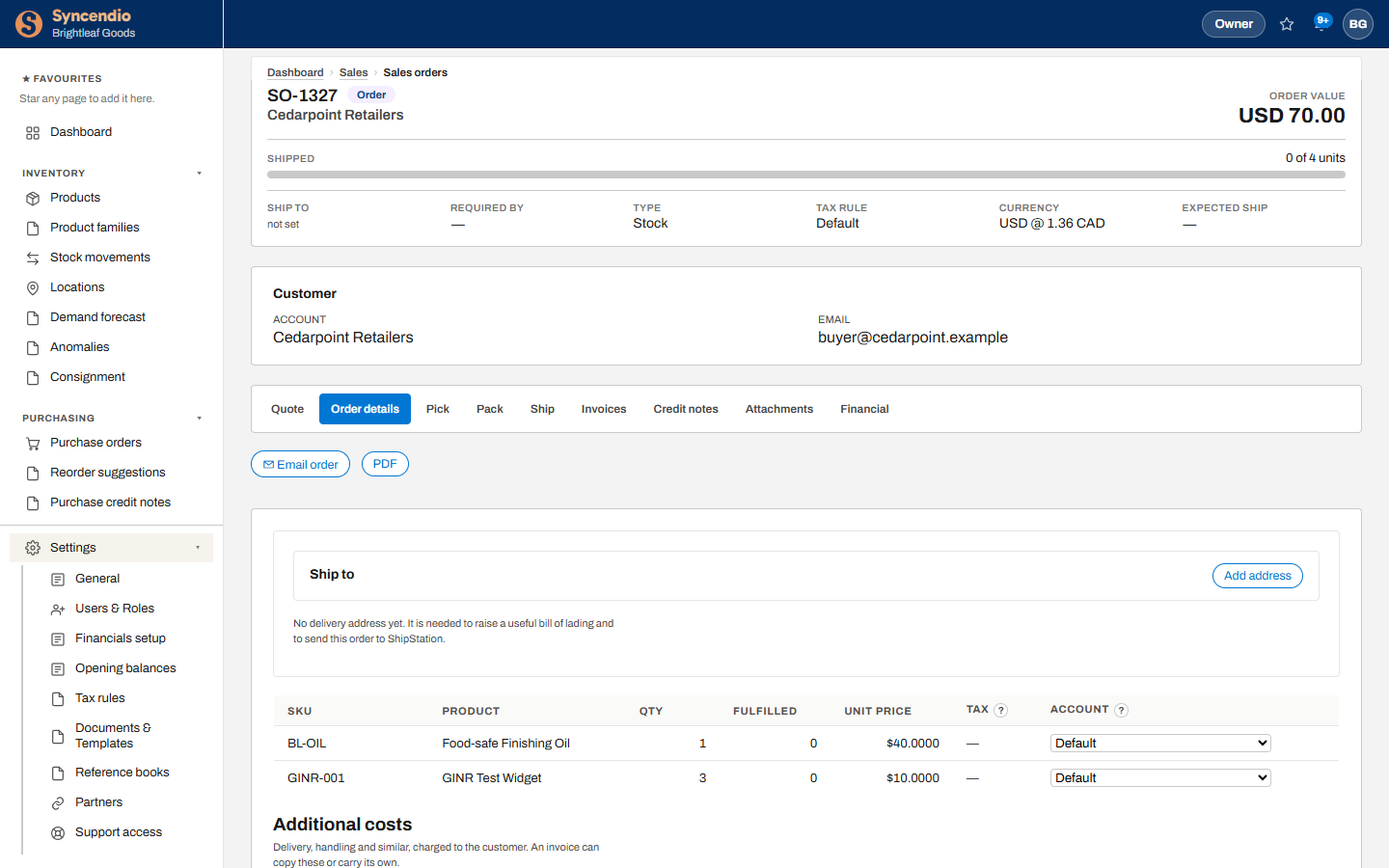
| Tab | What you do there |
|---|---|
| Quote | Accept or decline the quote (shown when the order started as one) |
| Order details | Lines, delivery address, extra costs such as delivery; email the order or download its PDF |
| Pick, Pack, Ship | Fulfil the order, in part or in full |
| Invoices | Bill the customer |
| Credit notes | Credit the customer against this order |
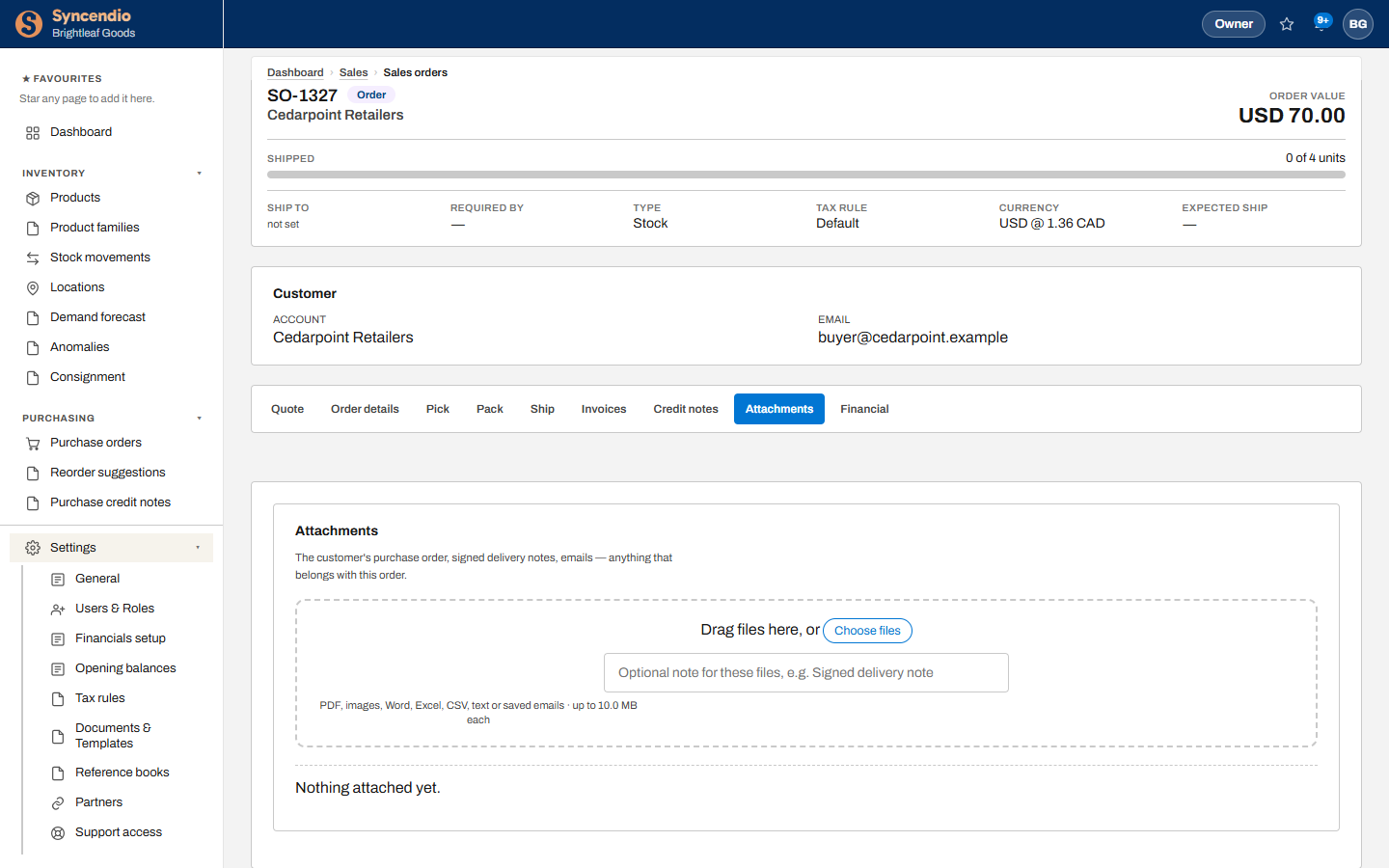
| Attachments | The customer’s PO, signed delivery notes, emails |
| Financial | The journal entries the order has posted |
Pick, pack and ship
- Pick. On the Pick tab, enter how many of each line you’re taking off the shelf in this run — or click Pick remaining. For batch-tracked products, choose the lot. Save to create a picking slip.
- Pack. On Pack, record what has been packed.
- Ship. On Ship, record the shipment. This is the step that takes the stock out and posts the cost of the sale.
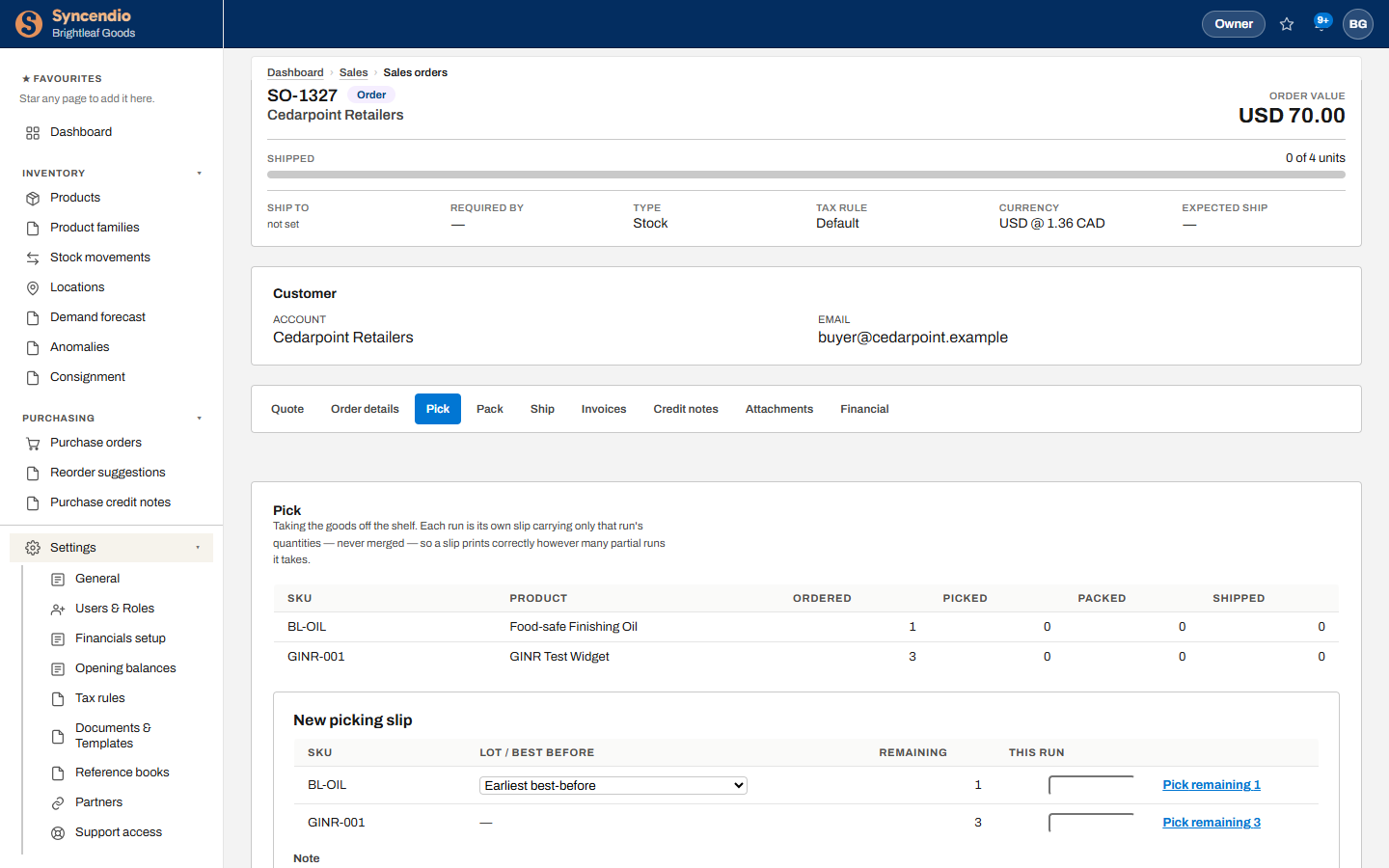
Add a delivery address first if you ship with ShipStation or need a bill of lading — the order can’t be sent without one.
Invoice the customer
- Open the order’s Invoices tab and click + New invoice.
- Choose the lines and quantities to bill. You can invoice part of an order, or bill before it is picked or shipped.
- Save, then use PDF to download it or email it to the customer.
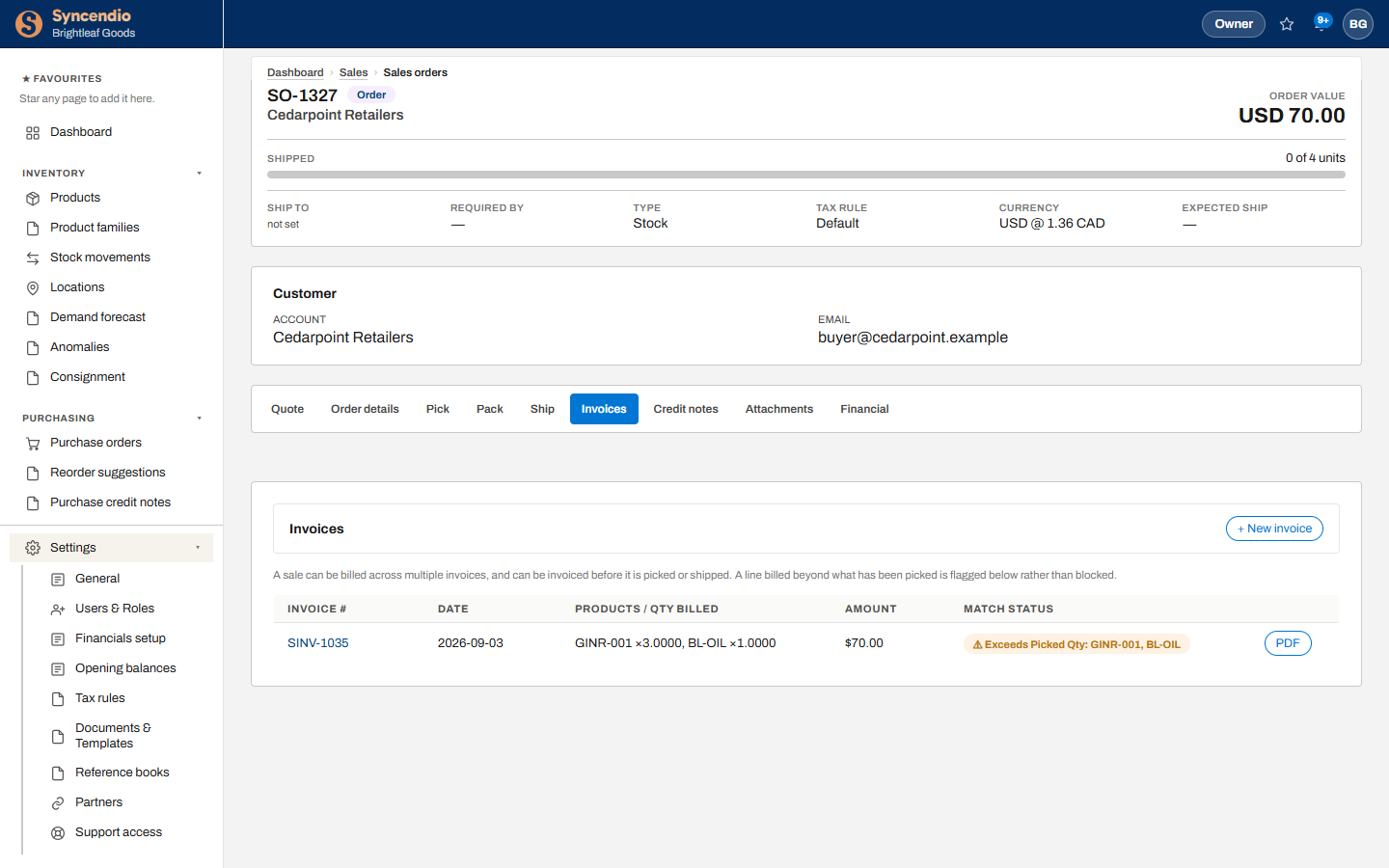
Match status compares everything billed on the order so far against what has actually been picked and packed:
| Match status | What it means |
|---|---|
| ✓ Within packed qty | Everything billed is packed and ready to go. |
| ⚠ Exceeds packed qty | More has been billed than is packed, although picking covers it. Usually fine if the rest is about to be packed. |
| ⚠ Exceeds picked qty | More has been billed than has been picked. Worth checking the quantity before sending it. |
You can raise as many invoices against one order as you need, and the count is cumulative — so a part-shipment can’t quietly get billed twice.
Credit notes
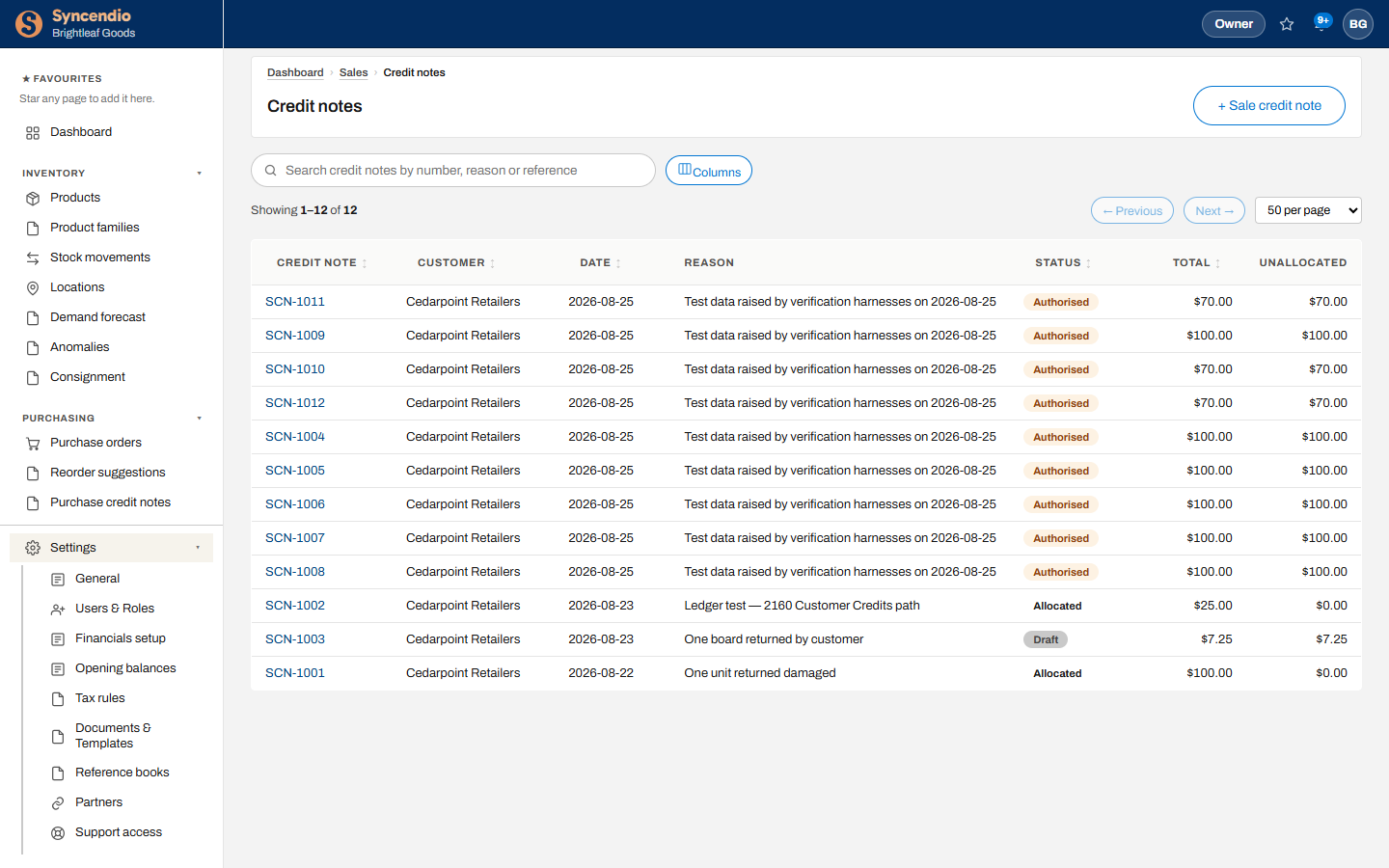
Raise a credit note from the order’s Credit notes tab, or from Sales → Credit notes → + Sale credit note. A credit note starts as a Draft, becomes Authorised when approved, and Allocated once it’s been applied against an invoice. Unallocated shows how much is still available to use.
A credit note gives back the tax as well as the goods. Each line takes the same tax the sale was charged — for example “HST — Ontario (13%)” — so crediting $50 of goods credits $56.50, and the tax you owe is reduced by $6.50. The line, the credit note PDF and the total all show it.
Backorders
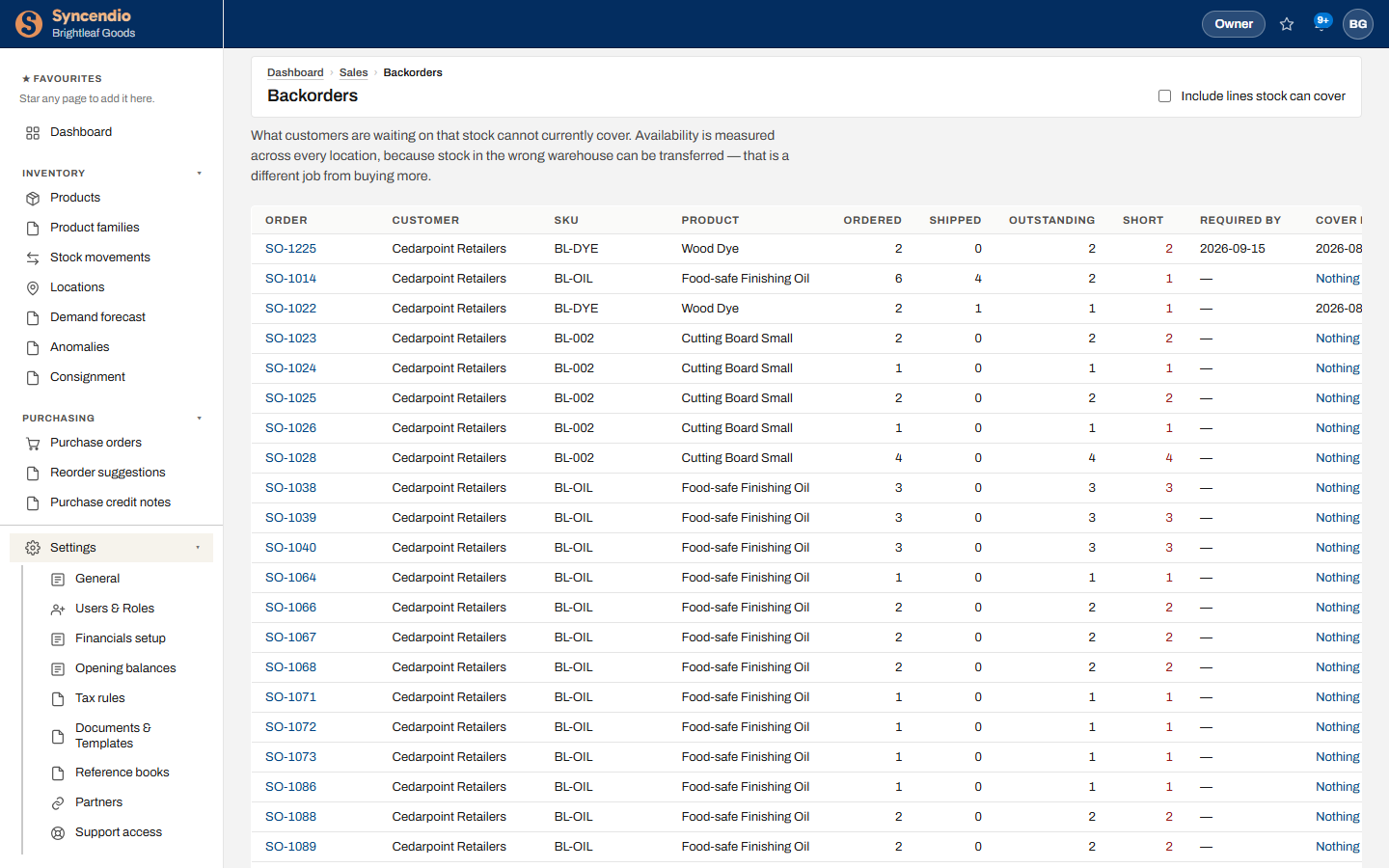
Sales → Backorders shows every order line customers are waiting on that current stock can’t cover, across all orders at once — with what’s outstanding, how short you are, and when more is due in.
Returns
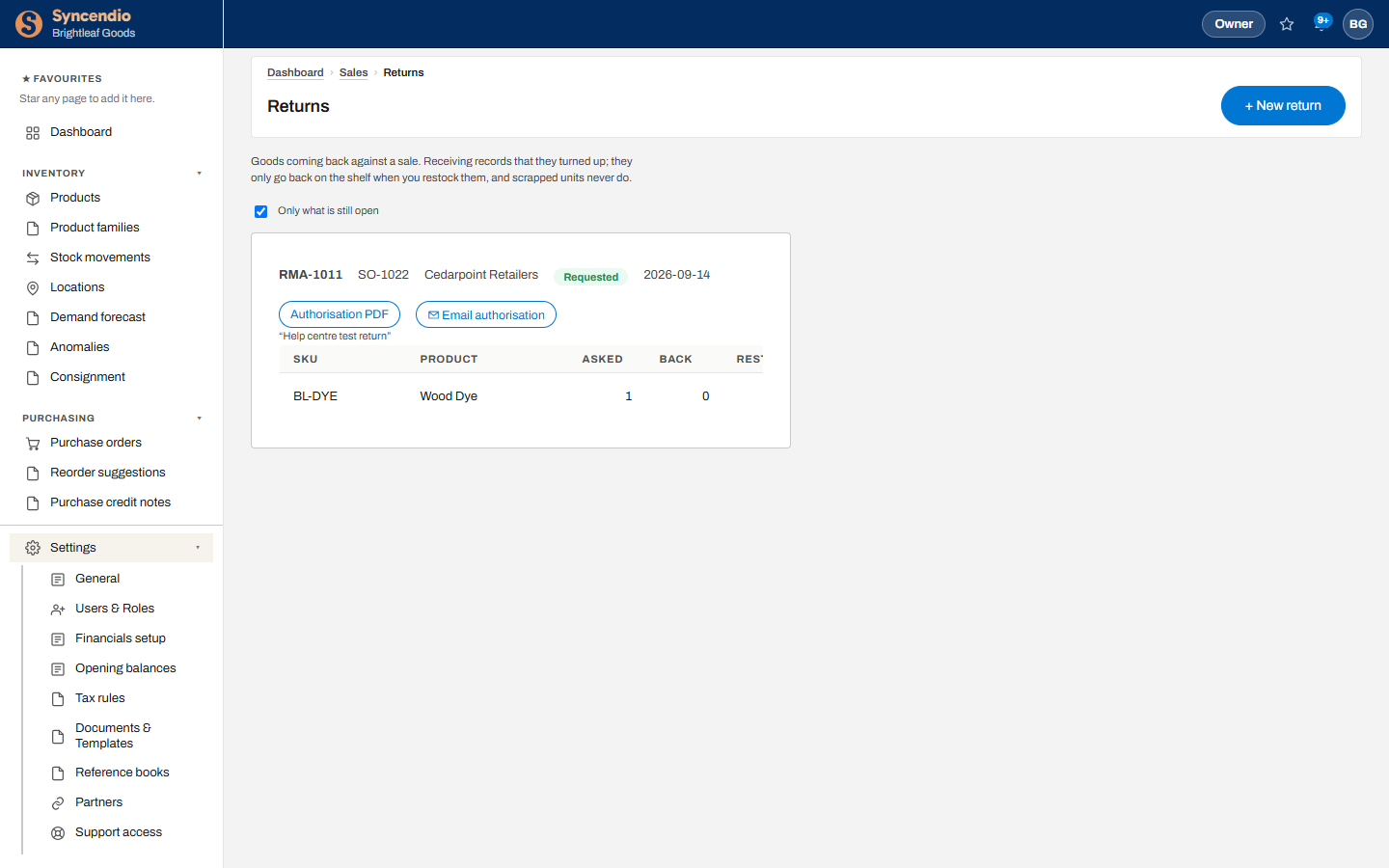
The Returns tab on a sales order tracks goods coming back against it (an add-on). Click + New return, enter the quantities, and send the customer the Authorisation PDF. Receiving a return records that it arrived; the stock only goes back on the shelf when you restock it, and anything scrapped never does. See the full Returns guide.
Attach documents
On the order’s Attachments tab, drag in the customer’s purchase order, signed delivery notes or emails, or click Choose files. Add a note so others know what each file is.