Settings & add-ons
Everything under Settings: who you are, who can do what, which optional features are on, and what your plan includes.
Company details
Settings → General holds your business’s legal and trading name, tax number and address — these print on the documents customers and suppliers see — and how Syncendio formats things.
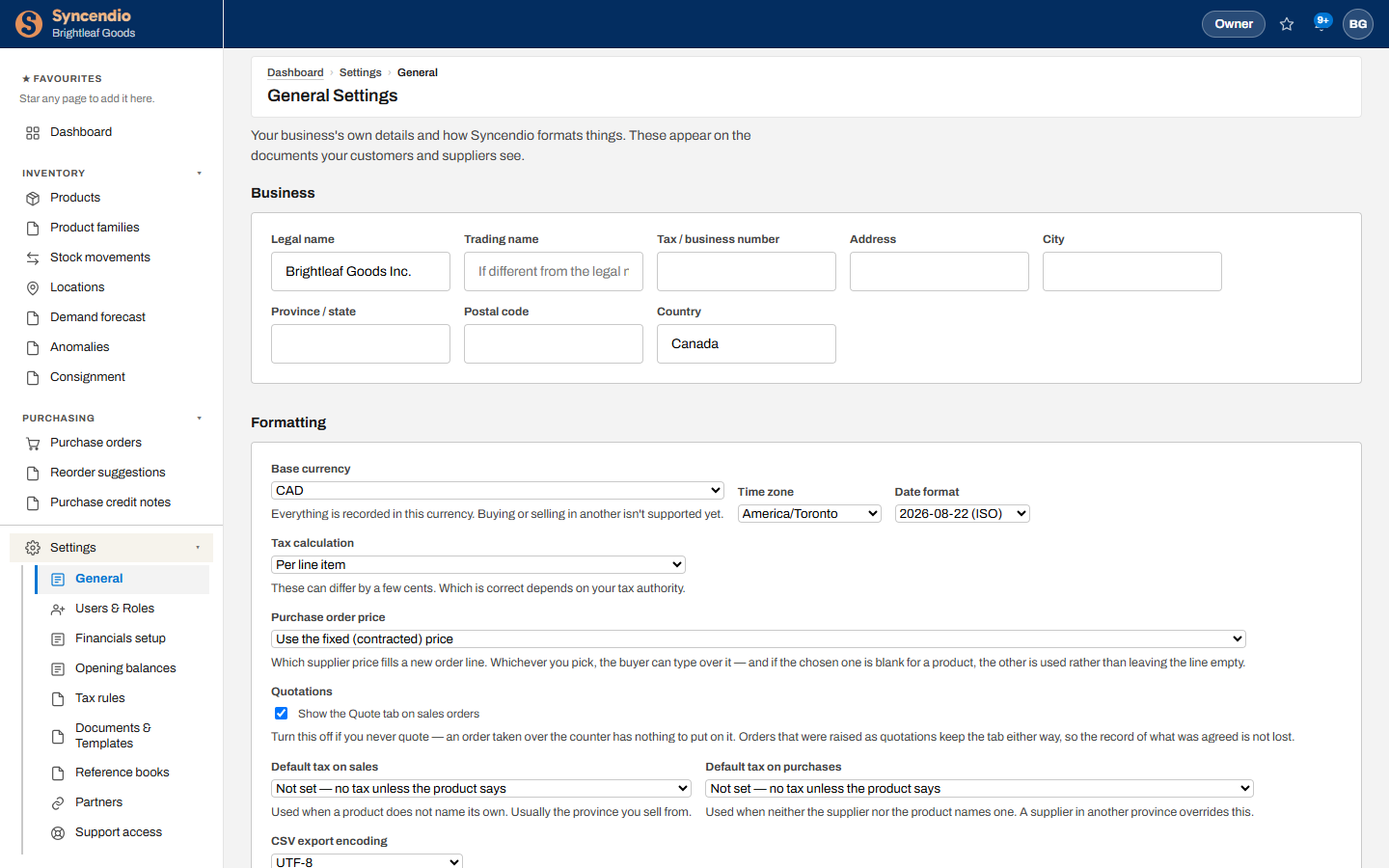
| Setting | What it changes |
|---|---|
| Base currency, Time zone, Date format | How amounts and dates are recorded and shown |
| Tax calculation | Tax per line or on the total — ask your accountant which your tax authority expects |
| Purchase order price | Whether new PO lines use the supplier’s contracted price or their current price |
| Quotations | Show or hide the Quote tab on sales orders |
| Price tiers | What you call each of the ten price lists — used on customers, product prices, reports and the API. Blank ones stay “Tier 2”, “Tier 3” and so on |
| Default tax on sales / purchases | The tax used when nothing more specific applies — see Tax rules and where they apply |
Users & roles
- Open Settings → Users & Roles and click + Add user.
- Enter their email and choose a role. They get an email to set their own password — you never handle it.
- To stop someone signing in, click Suspend. Reactivate lets them back in.
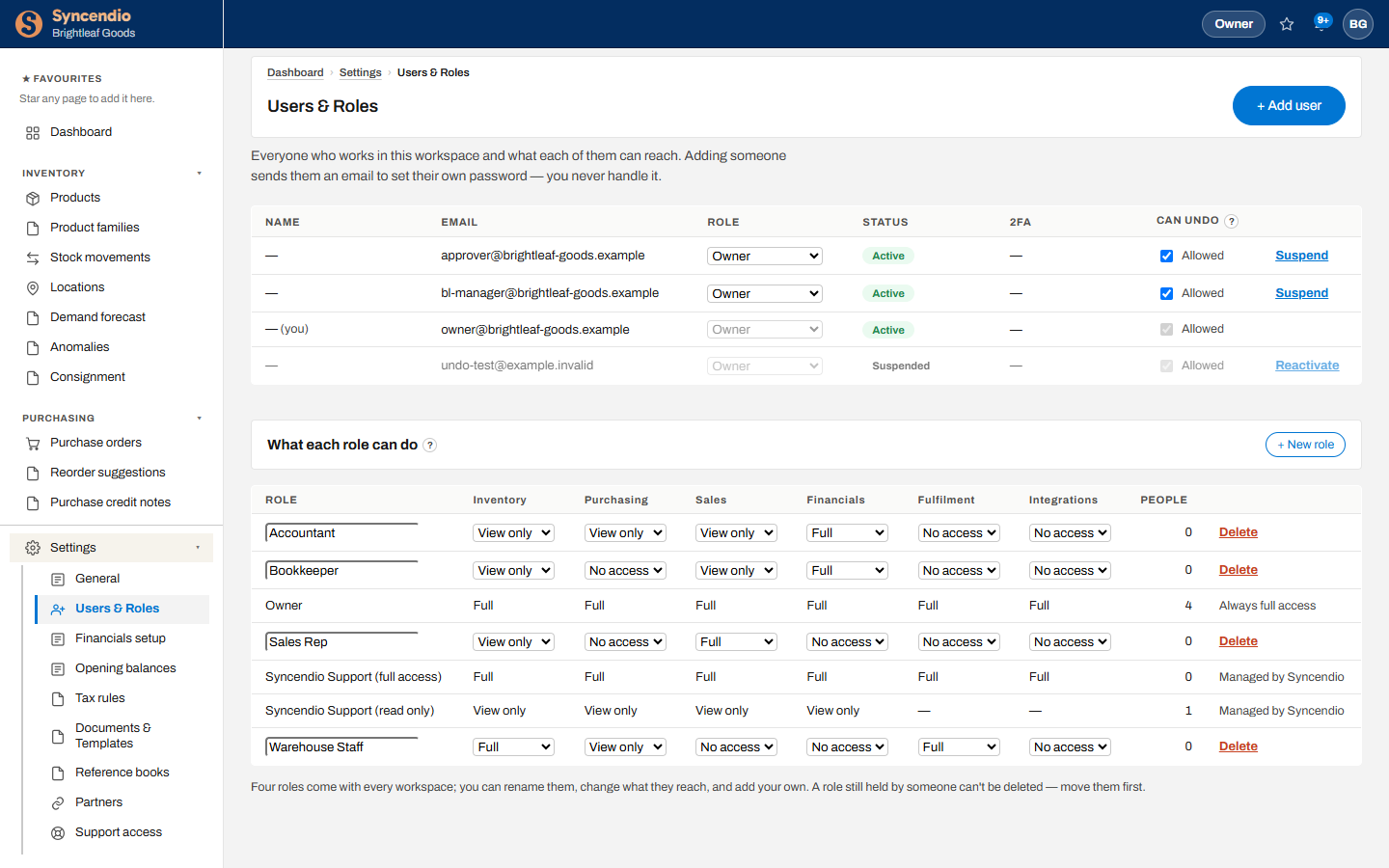
Each role sets Full, View only or No access for Inventory, Purchasing, Sales, Financials, Fulfilment and Integrations. Four roles come with every workspace — Accountant, Bookkeeper, Sales Rep and Warehouse Staff — and you can rename them, change them, or click + New role. The Owner role always has full access.
A role still assigned to someone can’t be deleted — move those people to another role first.
Add-ons
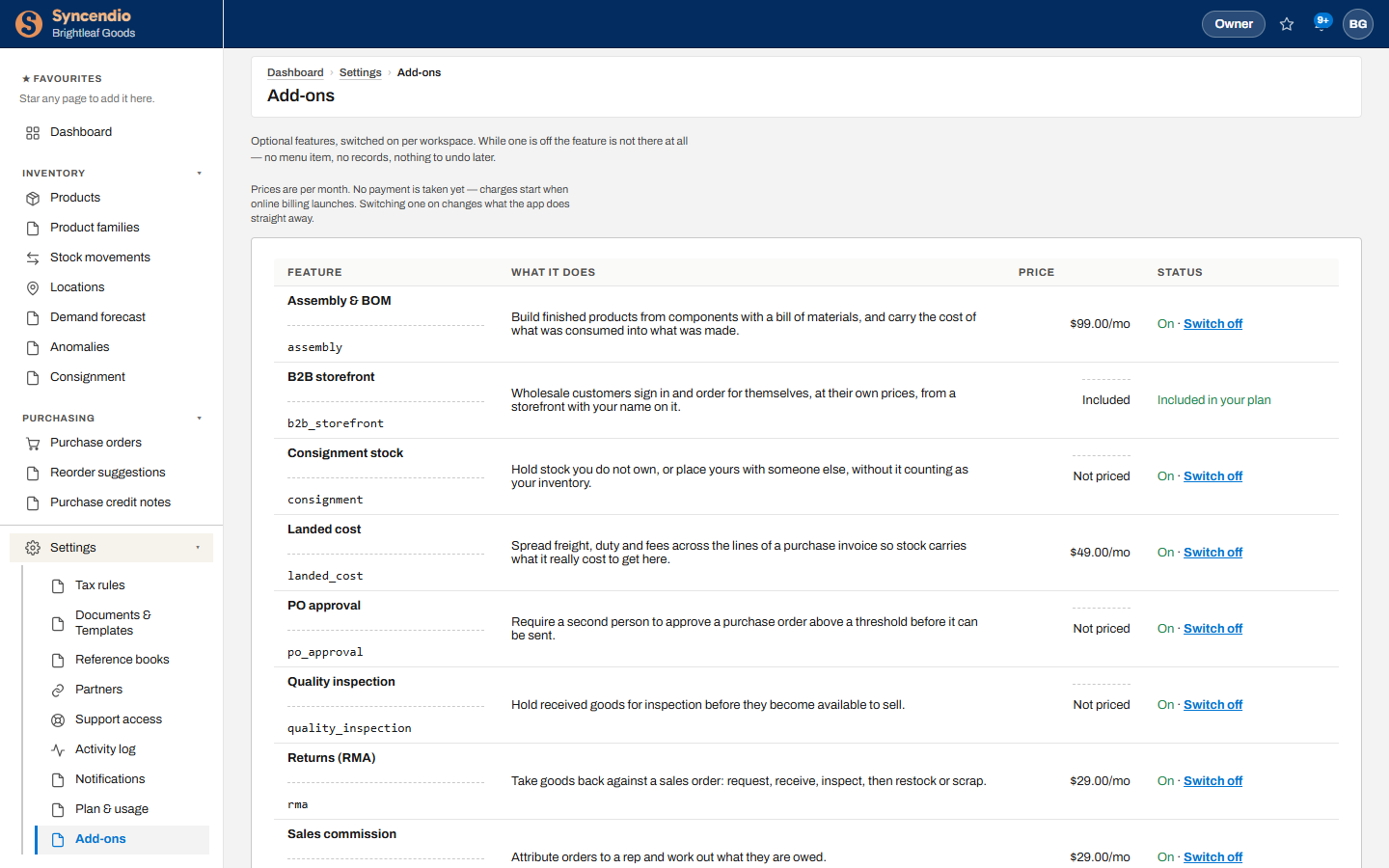
Settings → Add-ons lists optional features, what each does, its monthly price, and whether it’s on. While an add-on is off, it isn’t there at all — no menu item and nothing to tidy up later.
- Find the feature in the list.
- Click Switch on. It works straight away.
- To stop using it, click Switch off.
Plan & usage
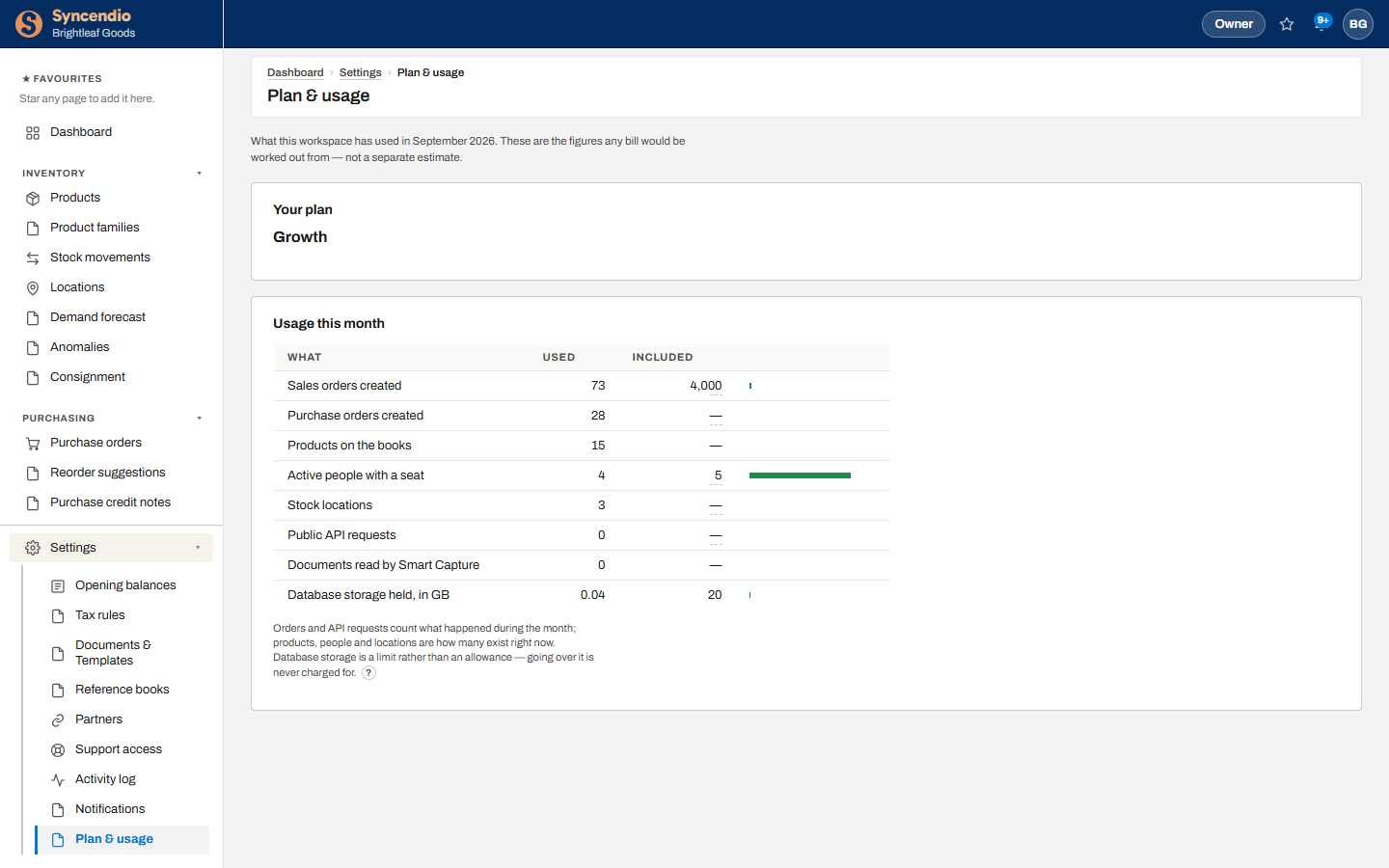
Settings → Plan & usage shows your plan and this month’s usage against what it includes: sales and purchase orders created, products, people with a seat, locations, API requests, documents read by Smart Capture, and storage.
Tax rules and where they apply
You build your tax rules once, under Settings → Tax rules — each rule holds its rate and the dates that rate applies from. After that, the job is saying which rule applies where. There are four places to say it, and it is worth setting all of them that apply to you.
| Set it on | Use it to say |
|---|---|
| Settings → General Default tax on sales / purchases | The tax you normally charge and pay. This is your safety net — it fills in wherever nothing more specific has been said. |
| A product | That this item is taxed differently from everything else — most often that it is zero-rated or exempt. |
| A customer | That this customer is taxed differently — they are exempt, they are a reseller, or they are in another province. |
| A supplier | The tax this supplier actually charges you on their invoices. |
Which one wins
More than one of these can apply at once, so Syncendio works down a list and stops at the first answer it finds. The two sides of your business use a different order, and the difference is deliberate.
When you sell, the product comes first:
- The product’s own tax rule
- The customer’s tax rule
- The tax rule chosen on that sales order
- Your default tax on sales
When you buy, the supplier comes first:
- The supplier’s tax rule
- The product’s own tax rule
- The tax rule chosen on that purchase order
- Your default tax on purchases
Why the two orders differ. When you buy, your supplier writes the invoice, so whatever they charge is simply what you pay — their rule has the last word. When you sell, you write the invoice, and a product marked zero-rated or exempt is a decision you made about that item. If a customer’s rule outranked it, every sale of that product to that customer would quietly be taxed at the standard rate, and the invoice would look perfectly normal. So on sales, the product is protected.
Leaving a field blank is not the same as choosing a zero rate. Blank means “nothing to say here”, and Syncendio moves on to the next line of the list. A rule with a zero rate is an answer — it stops the search and charges nothing, which is what you want for genuinely exempt goods.
Tax is fixed when you invoice. Each invoice line keeps the rate that applied on that invoice’s own date. Correcting a rate later never rewrites invoices you have already sent — if a rate was wrong, Syncendio shows you which transactions it affected so you can decide, one at a time, which to re-issue.
Your own fields (attributes)
Add fields Syncendio doesn’t have, such as Allergens on products, Delivery window on customers or Event date on sales orders.
- Open Settings → Reference books → Additional attributes.
- Enter a name, choose what it applies to, and choose its value type. For a List, enter the choices separated by commas, for example Gold, Silver, Bronze.
- Open any record of that kind and go to its Attributes tab. Fill in the value and click Save attributes.
| Applies to | Where you fill it in |
|---|---|
| Product | The product page, Attributes section |
| Customer | The customer page, Attributes tab |
| Supplier | The supplier page, Attributes tab |
| Sales order | The sales order, Attributes section |
| Purchase order | The purchase order, Attributes section |
| Value type | What you can enter |
|---|---|
| Text | Up to 500 characters |
| Number | A number with up to 4 decimal places |
| Date | A calendar date |
| Yes / no | Yes, No, or left blank |
| List | One of the choices you set up |
On documents and through the API
An order’s attributes print on its PDF, under the dates — switch them off per document under Settings → Documents & Templates. In the API, products, customers, suppliers, sales orders and purchase orders carry an attributes object keyed by name, you can send one when creating a record, and any of those lists can be filtered by attribute.
Filtering by an attribute
Every list that carries attributes — products, customers, suppliers, sales orders and purchase orders — has a filter beside its search box. Choose the attribute, then either a value or is filled in / is blank. Text matches on any part of the value; a list, number, date or yes/no matches exactly. The count above the table follows the filter, so “Showing 1–12 of 12” means twelve matches, not twelve of everything.
Removing an attribute retires it rather than deleting it. Values already recorded stay visible on each record, marked (retired), but can’t be changed. To clear one value, empty the field and save. You need full access to a record’s module to change its attributes, and full Financials access to set attributes up.
Other settings
| Page | For |
|---|---|
| Financials setup, Opening balances | See Financials |
| Tax rules | The taxes you charge and pay, and their rates — see Tax rules and where they apply |
| Documents & Templates | See Documents & PDFs |
| Reference books | Shared lists such as units of measure, and your own fields |
| Partners | Your accountant or implementation partner |
| Support access | Allow, and see, any time Syncendio support entered your workspace to help |
| Activity log | Who changed what, and when |
| Notifications | Which alerts you receive |
| API keys & webhooks | Moved to Integrations → API. See API & webhooks |