Purchasing
Order from suppliers, receive what actually arrives, and record the bill — with stock, cost and your accounts updated at each step.
Suppliers
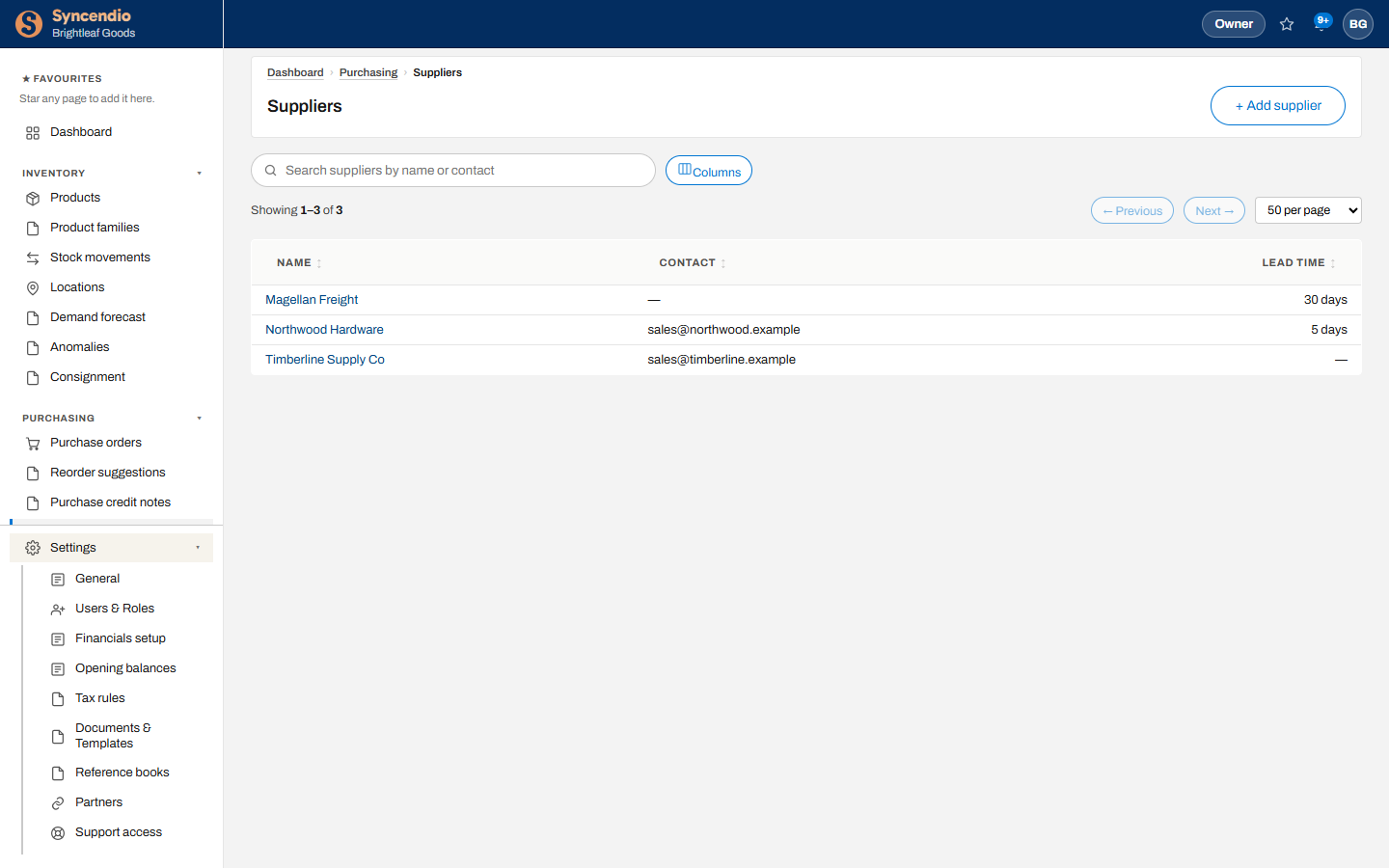
Add suppliers under Purchasing → Suppliers. Link each product to the suppliers you buy it from on the product’s Suppliers tab — with their code for it, the lead time and the agreed price — so new orders fill in the price for you and reorder suggestions know who to ask.
Create a purchase order
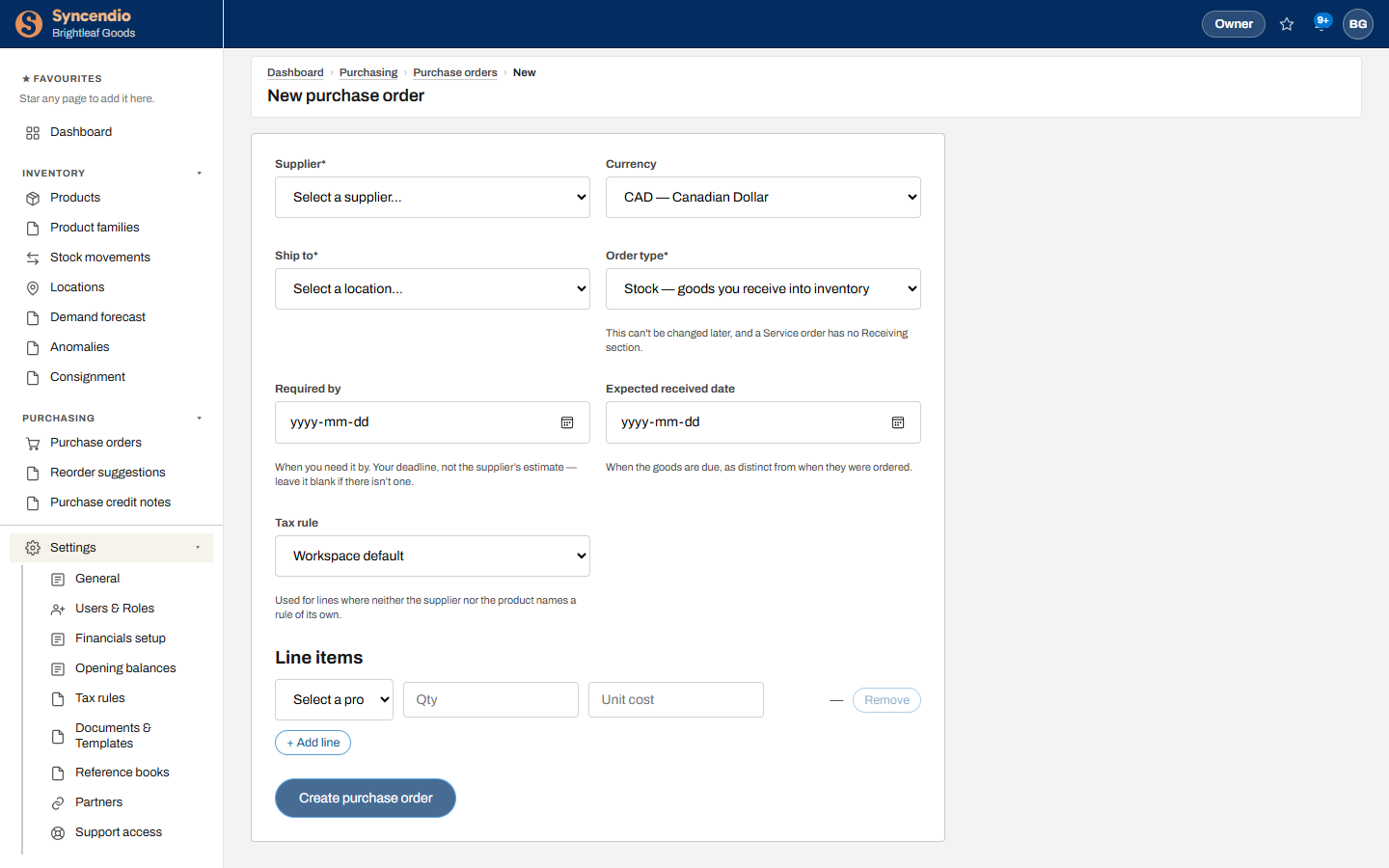
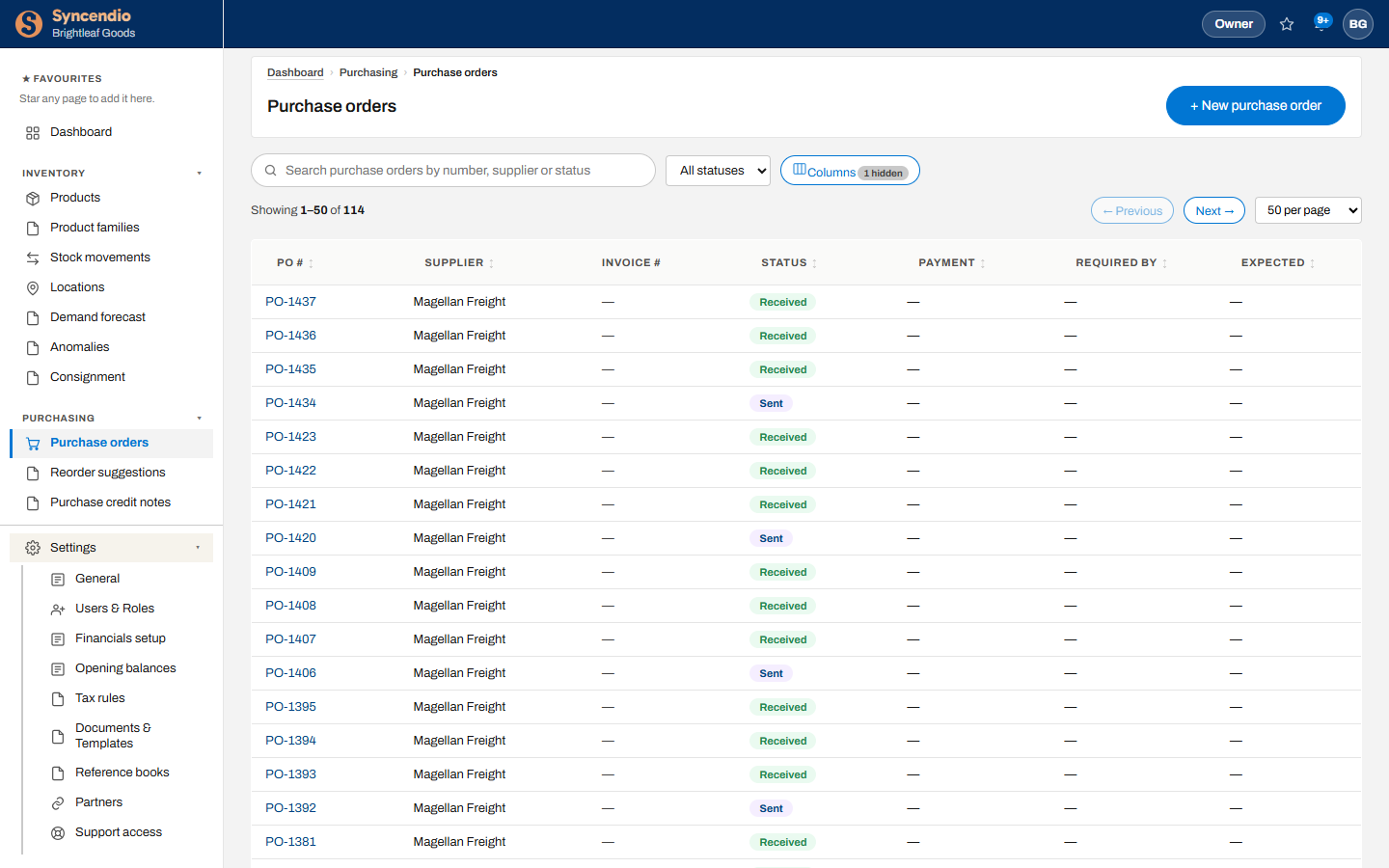
- Open Purchasing → Purchase orders and click + New purchase order.
- Choose the Supplier, the Currency, and the location to Ship to.
- Pick the Order type: Stock for goods you receive into inventory, or Service for things with nothing to receive. This can’t be changed later.
- Optionally set Required by (your deadline), Expected received date and Tax rule.
- Add a line for each product with its quantity and unit cost, then click Create purchase order.
Send it to the supplier
Open the order. The tabs across the middle — Order details, Receiving, Invoices, Credit notes, Attachments, Financial — hold everything that happens to it.
- On Order details, click Send.
- Review the email: who it’s from, who it goes to (change it if you need to), anyone copied, the subject, your message and the attached PDF — exactly what the supplier will receive.
- Click Send email. The order is marked as sent. For an order phoned through, use Just mark as sent instead.
Need to send it again — the supplier lost it, or another contact needs it? On a sent order, ✉ Email purchase order emails a copy after the same review, and doesn’t change the order.
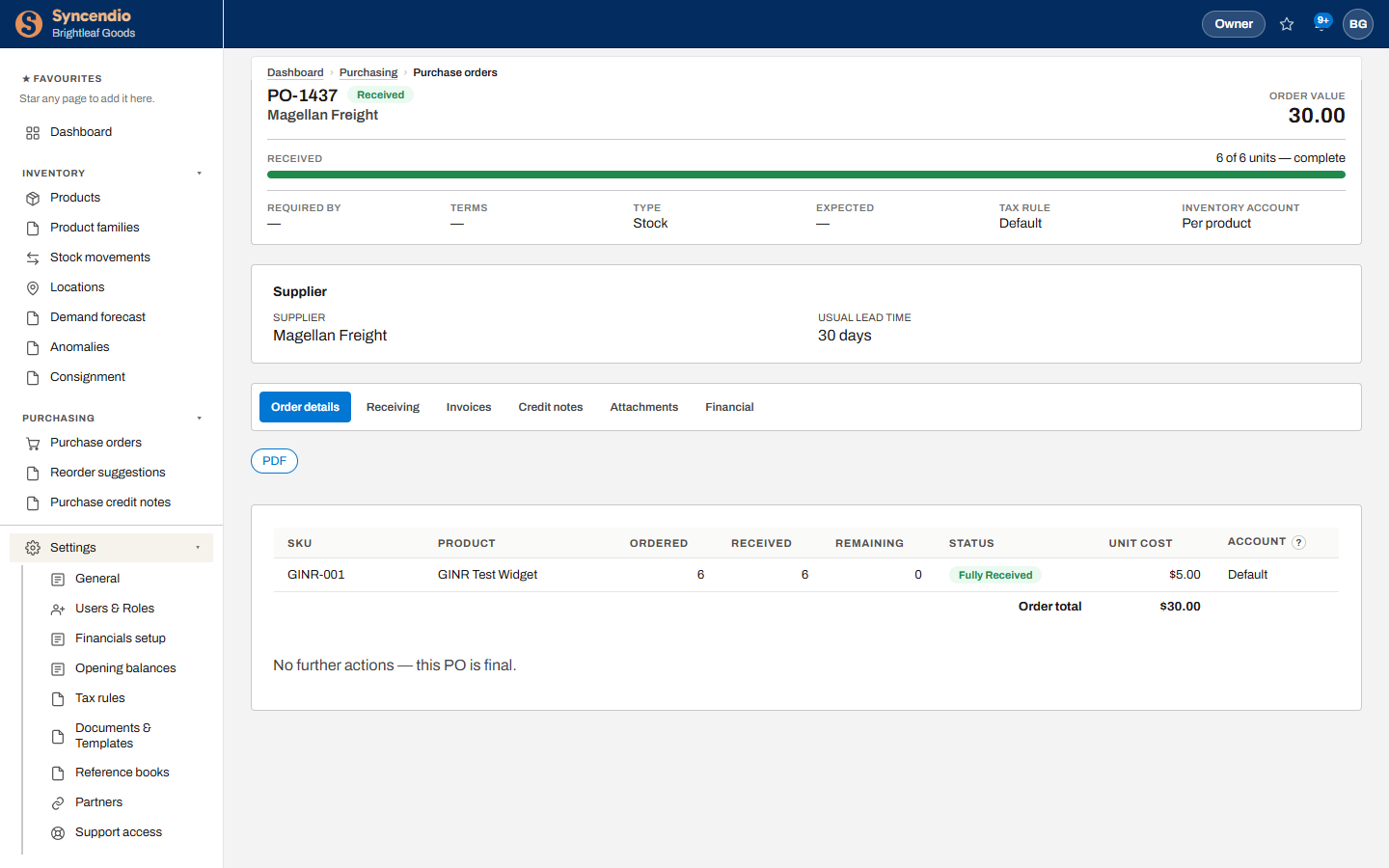
To change how the PDF looks, see Documents & PDFs.
Receive the goods
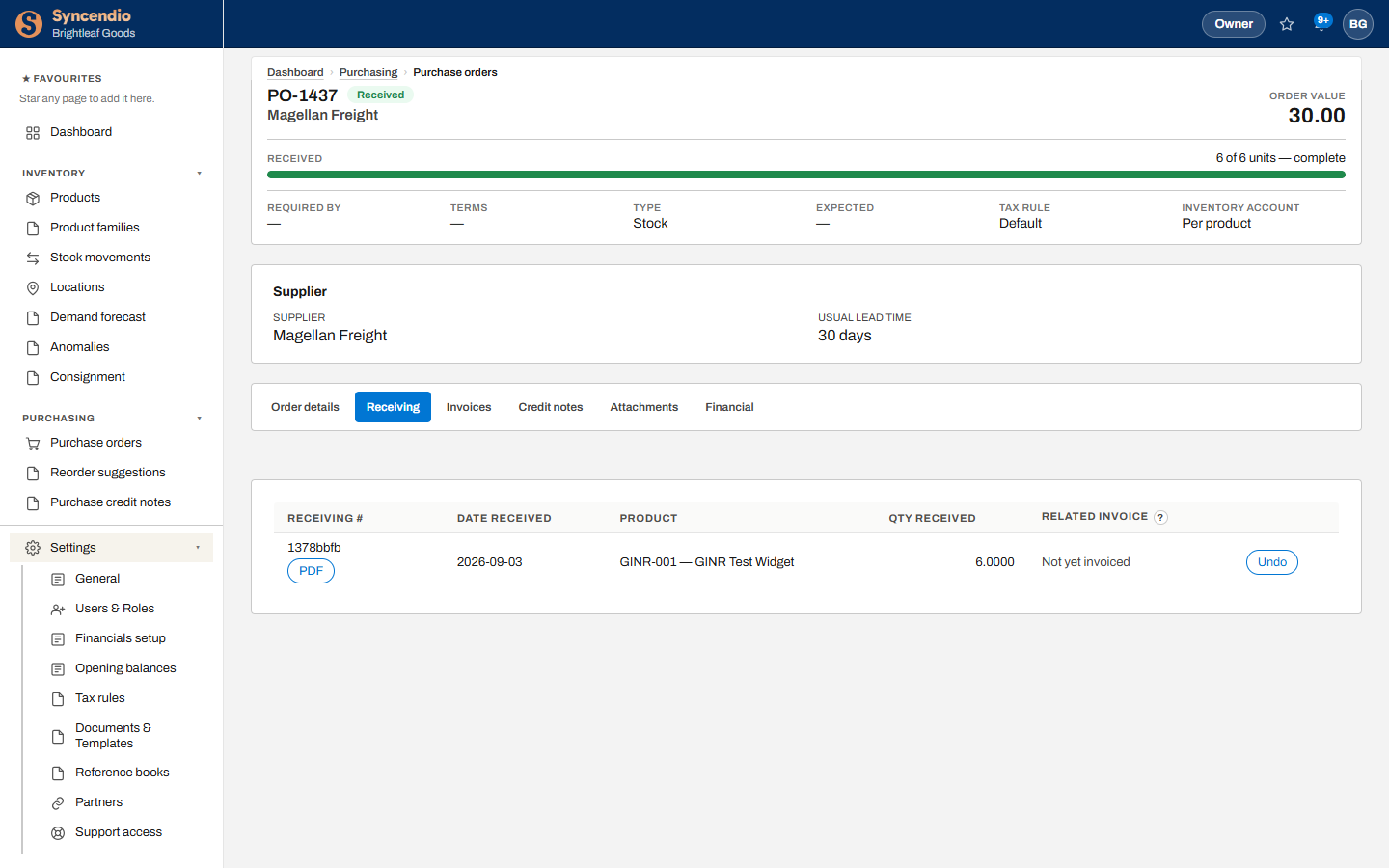
- Open the order and go to Receiving.
- Enter what actually arrived for each line — it can be less than you ordered; the rest stays open.
- Save. Stock goes up at the receiving location and is costed at the order price.
Fix a receipt
- Wrong quantity? Click Edit qty on the receipt, change the numbers and Save. Stock, cost and the order’s received figures are corrected together; the date, note and lot numbers stay as they were.
- Shouldn’t be there at all? Click Undo. The stock comes back off the shelf and the receipt is removed from the order. The stock movement and its reversal stay under Stock movements, and the undo is logged.
- Both need the Can undo permission, and both are refused once the delivery has been invoiced or its stock has been used — correct the invoice first.
- Serial-tracked products can’t have their quantity edited; undo the receipt and receive it again with the right serial numbers.
With the warehouse scanner, staff can receive by scanning at the dock instead.
Supplier invoices & credit notes
When the supplier’s bill arrives, record it on the order’s Invoices tab. Syncendio compares what you were billed for with what you received and flags any difference. Each invoice has its own PDF for filing or your accountant.
More than one invoice on an order. A supplier can bill one order across several invoices — part now, the rest when the balance ships. Record each as it arrives. Each is costed and posted separately when you authorise it, in the order the supplier raised them, so your stock value and what you owe build up invoice by invoice.
If the supplier credits you — for a return or an overcharge — record it on Credit notes, or from Purchasing → Purchase credit notes.
Emailing the supplier. Once an invoice is authorised, or a credit note is past draft, ✉ Email supplier sends your record of it back to the supplier — to confirm a figure or query a line. It’s on the invoice or credit note itself (including when it’s open in a side panel) and on each row of the order’s Invoices and Credit notes tabs. The email opens for review first, and says it’s your record of their document; the attached PDF names the supplier as the issuer. Change the wording under Settings → Documents & Templates.
Got the invoice on paper? Upload it to Smart Capture and file it against the order from there.
Attach documents
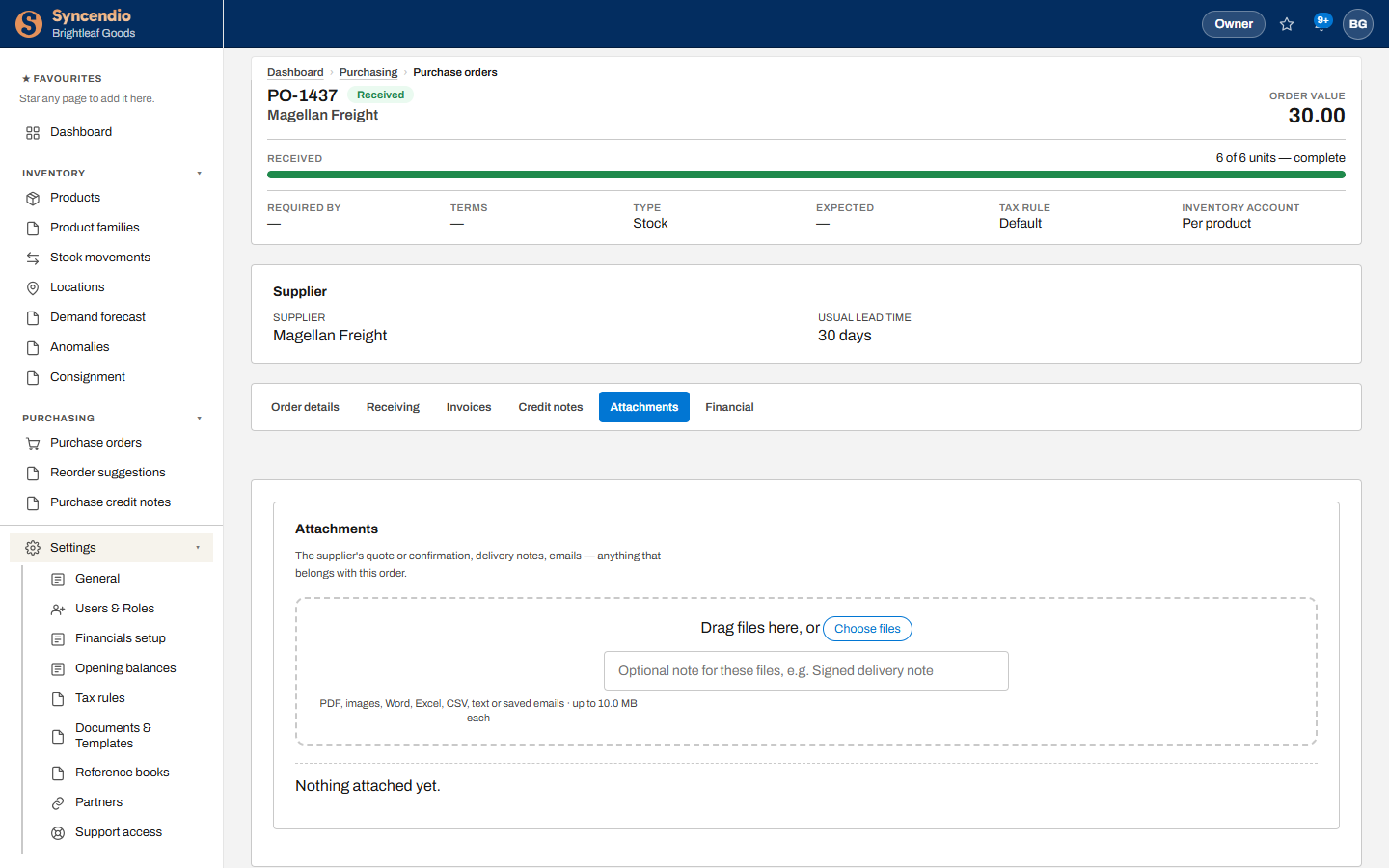
The Attachments tab keeps the supplier’s quote, their order confirmation, packing lists or emails with the order. Drag files in or click Choose files, and add a short note if it helps.
Reorder suggestions
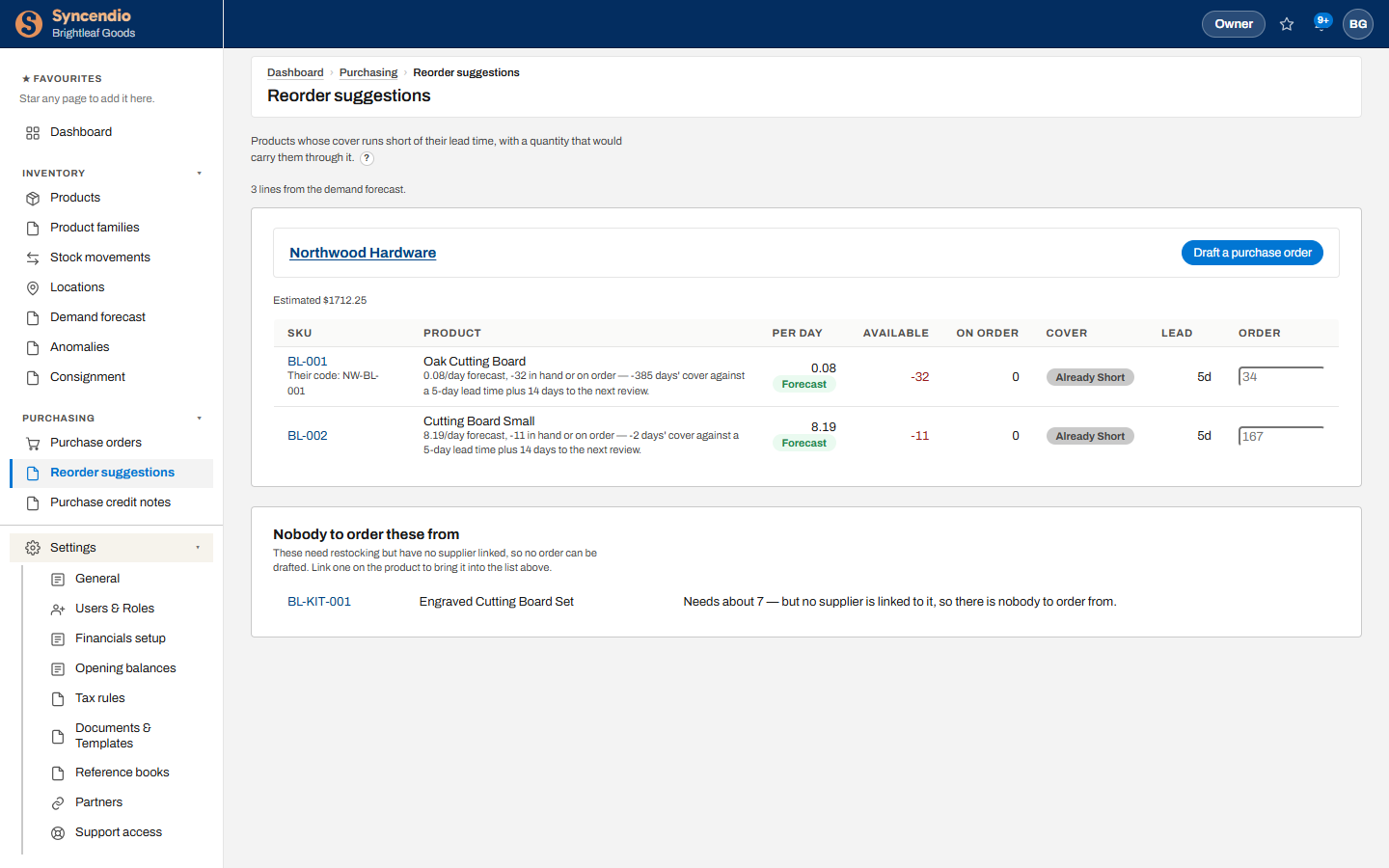
Purchasing → Reorder suggestions lists products that will run out before a new delivery could arrive, grouped by supplier, with a suggested quantity.
- Review the suggested Order quantity for each line and change it if you need to.
- Click Draft a purchase order for that supplier.
- Open the draft, check it, and send it.